TP-Link Archer MR200 4G LTE Router Review

With the growing demand for 4G wireless routers, the manufacturer are continuing presenting new LTE routers to the market. As the competitor of Huawei routers, TP-Link offers two new 4G routers this year; we are very interested in the most high-end router named TP-Link Archer MR200. Let us have a close look at its characteristics:

TP-Link Archer MR200 Highlights:

* High-end 3G/4G Routers

* Ideal for use on the road or in rural areas without DSL availability

* Supports the 4G/LTE mobile phone standard with download rates of up to 150Mbit/s

* No configuration required – simply insert the SIM card and put the LTE hotspot into operation

* Simultaneous dual band according to 802.11ac: up to 300 Mbit/s on 2.4 GHz and 433 Mbit/s on 5 GHz

* Freely configurable LAN/WAN port for the alternative connection via cable or fiber optic modem

TP-link Archer MR200 is ideal for use on the road or in rural areas without DSL availability. It supports the LTE/4G mobile communications standard with up to 150 Mbps in the download and 50 Mbps in the upload for uninterrupted video streaming and online gaming. Thanks to a built-in modem, you only need to use a valid 4G/LTE SIM card to set up your own WLAN hotspot for multiple users/devices.
 

Dual-band Connection with 802.11ac


Via WLAN, the Archer MR200 provides data rates of up to 733 Mbit/s according to 802.11ac. It works on both the 2.4 GHz and the 5 GHz band and thus ensures incredible WLAN performance. This simultaneous operation gives you the flexibility of two dedicated WLANs to which you can assign various purposes: email, chat, and surf at up to 300Mbps on 2.4GHz and simultaneous online gaming and HD video streaming at up to 433Mbps on 5 GHz.


Easy commissioning of a 4G/LTE connection


The Archer MR200 has an integrated 4G/LTE modem and an SIM card slot. You just have to plug in an unlocked SIM card and you will have your 4G/LTE hotspot in operation. Setting up a fast and stable mobile connection has never been easier!


WLAN where you need it


The Archer MR200 allows you to quickly and easily set up a 4G/LTE hotspot for multiple devices. This gives you an Internet access wherever you need it – whether in the meeting room, on the building site or in the holiday home.


WAN port for more flexibility


With its LAN/WAN port, the Archer MR200 offers another option for broadband connection via DSL, cable or fiber. This means that you are more flexible when choosing your Internet service provider, and can have the option of a backup solution. you can connect several PCs to ethernet directly, which is always better for performance.


Below are the detail features and specifications for TP-link Archer MR200:

Hardware Features
InteIrface 3 10 / 100Mbps LAN ports
1 10 / 100Mbps LAN / WAN port
1 SIM card slot
Button WPS / Reset
WLAN
Power
Antenna 3 internal for WLAN
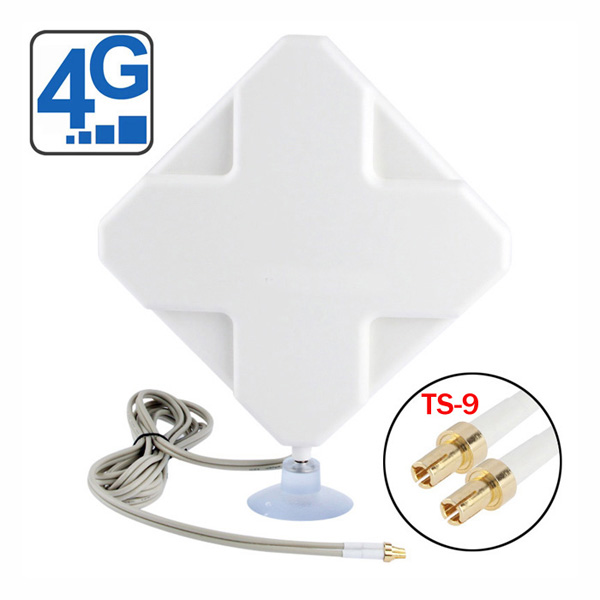
2 removable for LTE
External power supply 12V / 1A DC voltage
Dimensions (B * T * H) 202mm * 141mm * 33,6mm
Wireless Functions
WLAN standards 5GHz:  IEEE802.11ac/n/a
2.4GHz:  IEEE802.11b/g/n
Frequency 2.4GHz & 5GHz
Signal rate 300Mbps to 2.4GHz
433Mbps to 5GHz
Receiver sensitivity 5GHz:
11a 54M: -74dBm
11ac HT20: -67dBm
11ac HT40: -64dBm
11ac HT80: -60dBm
11n HT20: -71dBm
11n HT40: -70dBm
2.4GHz:
11g 54M: -76dBm
11n HT20: -73dBm
11n HT40: – 67dBm
Transmission power CE:
max. 20dBm to 2.4GHz
max. 23dBm to 5GHz
WLAN features WLAN on / off
WDS Bridge
WMM
WLAN statistics
WLAN security WEP with 64 / 128Bit
WPA / WPA2
WPA-PSK / WPA2-PSK
Network Type (V2) 4G: FDD-LTE B1 / B3 / B7 / B8 / B20
4G: TD-LTE B38 / B40
3G: DC HSPA+ / HSPA+ / HSPA / UMTS B1 / B8 (2100 / 900MHz)
2G: EDGE / GPRS / GSM Quadband (850/900/1800 / 1900MHz)
Network type 4G: FDD-LTE Cat4 (800/900/1800/2100 / 2600MHz),
TDD-LTE (2300 / 2600MHz)
3G: DC-HSPA+ / HSPA+ / HSPA / UMTS (900 / 2100MHz)
2G (EDGE / GPRS / GSM 850/900/1800 / 1900MHz)
Software Features
Quality of Service Traffickertrolle (IP-QoS)
Modes 3G / 4G router
wireless router
WAN type Dynamic / Static IP address
PPPoE
PPTP (Dual access)
L2TP (Dual access)
Administration Access control
Local administration
Remote maintenance
DHCP Server
Client
DHCP client list Address
reservation
Port Forwarding Virtual server
port triggering
UPnP
DMZ
Dynamic DNS DynDNS
No-IP
VPN passthrough PPTP
L2TP
IPsec
Access control Parental Control
Local Management
Host List
schedule
policy management
Firewall Security DoS protection
SPI firewall
IP address filter / domain name filter
IP / MAC address binding
Logs IPv4
IPv6
Guest network 1 per WLAN band
IPsec VPN Up to 10 IPsec VPN tunnels
OTHERS
Certification CE
FCC
RoHS
Package contents AC750 dualband LTE wireless router MR200 Archer
2 Antennas
RJ45 Ethernet cable
power adapter
Quick Install Guide
Micro and Nano SIM Card Adapter
System requirements Microsoft Windows® 98SE, NT, 2000, XP, Vista, 7, 8 or 10
MacOS®
NetWare®
UNIX®
Linux
Microsoft Internet Explorer 11, Mozilla Firefox 12.0, Google Chrome 20.0, Apple Safari 4.0 or higher
Surroundings Operating temperature: 0 ° C..40 ° C
Storage temperature: -40 ° C..70 ° C
Operating humidity: 10% .. 90%, non-condensing
Storage humidity: 5% .. 90%, non-condensing


The TP-link MR200 has undeniable strengths, including the possibility of changing the two LTE antennas for more powerful. It is also possible to turn off the wifi with a button, which allows ecologists to avoid permanent exposure to the waves.  We would take full test of the performance of this TP-link Archer MR200 and present a report for potential users’ reference.


Huawei B525s-23a 4G LTE Cat6 Router Review

The manufacturer HUAWEI has launched the router B525-23a in 2017, and now the latest 4G router B525 is already available for some network providers in Europe, Middle East and Asia, which is to replace the same excellent predecessor router Huawei E5186s-22a.

Huawei B525 B525s-23a

The dimensions of Huawei B525 router are 22.6cm long, 16.3cm high and 5.3cm thick. Its weight is 370 grams. These features mean it’s not a portable pocket WiFi router. It supports the 4G+ LTE category 6 on the bands:  1/3/7/8/20/32/38 (800/900/1500/1800/2100/2600MHz, TDD 2600MHz). No 700MHz(Band 28), so check first whether this router is right for your areas before you pick up, i.e. your network providers broadcasts on the above bands, which will make sure you can use this new router normally without any problem.

Huawei B525 B525s-23a

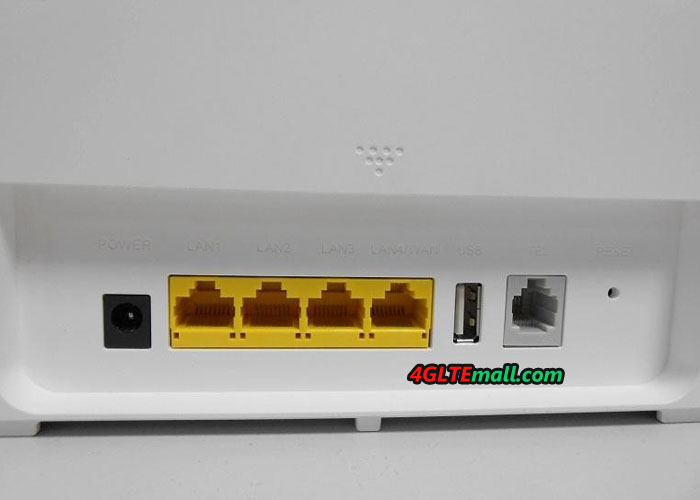
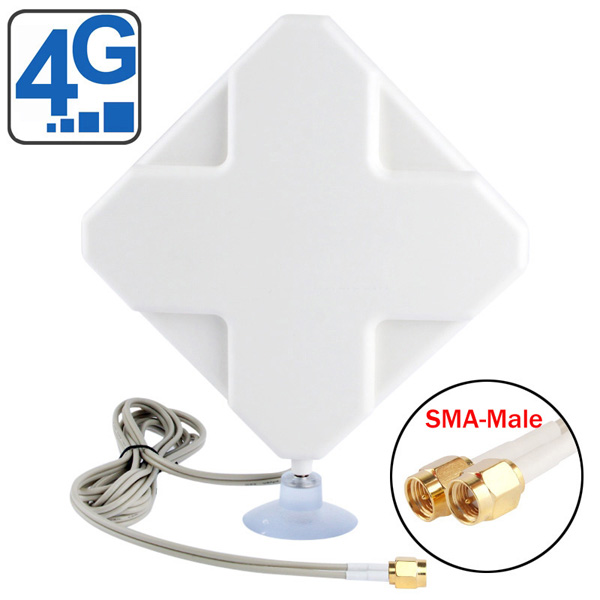
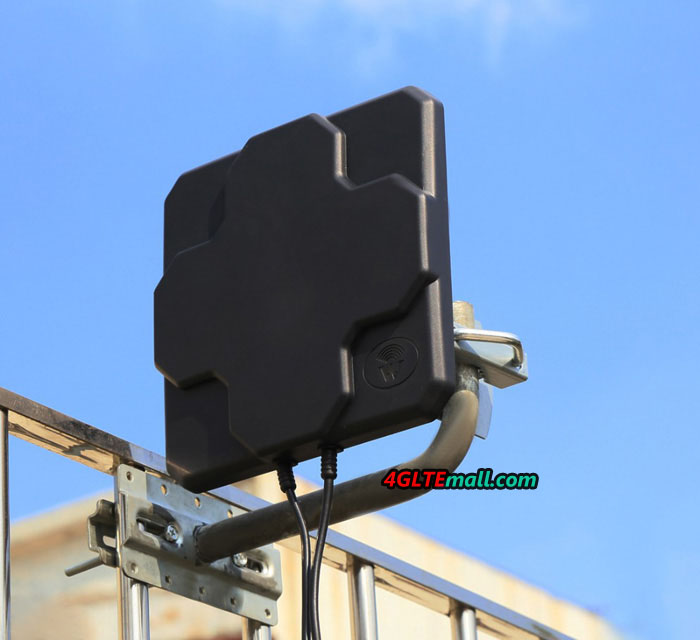
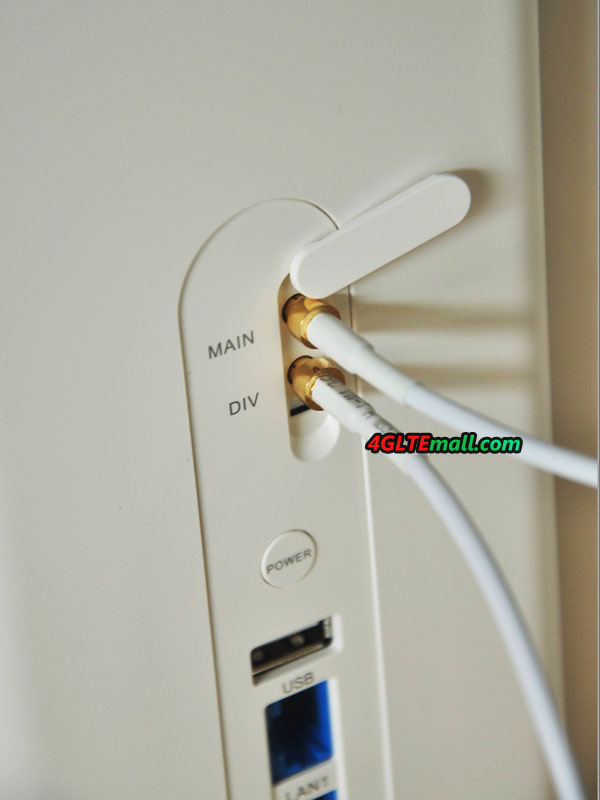
The proposed WIFI is a/b/g/n/ac on dual bands 2.4Ghz and 5Ghz and supports up to 64 devices connected over 250m range. (Warning: these are the data of the manufacturer in optimal conditions; the range of the wifi depends on the thickness of the walls and other parameters.) At the back of the wireless router, there are 4 ports for LAN, of which 1 port is for LAN/WAN. An external 4G/LTE antenna can be connected via the 2 SMA ports. We recommend below two antennas for Huawei B525 for indoor and outdoor use:

Huawei B525 B525s-23a interfaces

An RJ11 port allows you to connect a phone on it to make calls via the inserted SIM card. (Provided you do not force the router only on the 4G so that it can switch to other voice frequencies and that your SIM package is not only in data) A USB 2.0 port connects a hard drive or printer. The SIM card must be in the MICRO SIM format.

It has a multilingual interface that you manage from your computer to configure your network quickly and easily (DHCP, VOIP, FIREWALL, consumption management etc) but is also compatible with the mobile application Huawei Mobile WiFi for a configuration via smartphones or Pads.

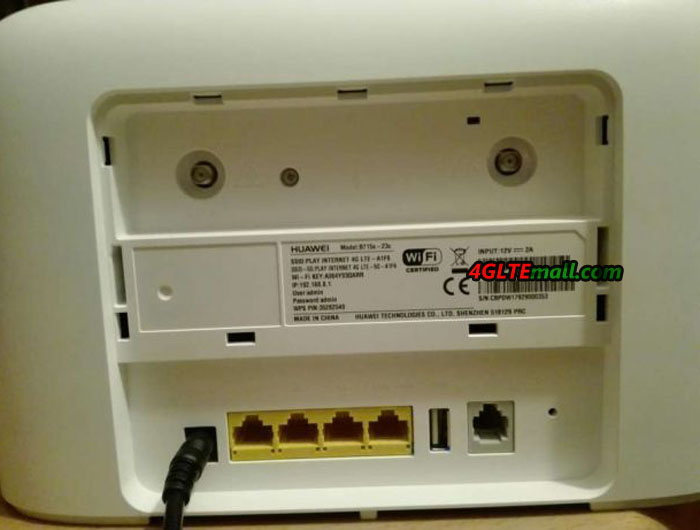
Huawei B525 B525s-23a label


The Huawei B525s-23a Router 4G has an on/off button which is to turn it off when you do not use it. Likewise, a WPS button (to connect wifi easily) and 5 LEDs will allow you to know the intensity of your 4G reception. This HUAWEI B525s-23a is the latest flagship of the brand’s 4G routing modems. At a relatively affordable price (compared to smatphones for example), you will be able to get rid of a deficient ADSL network and multiply your connection speed.

 Huawei B525 B525s-23a power and WPS button

Regarding what’s the real difference between Huawei B525 router and Huawei E5186 router, we will check later. Actually, they are too similar technically, we don’t know why the new B525 is presented when the Huawei E5186s-22a is good enough for current LTE cat6 networks.

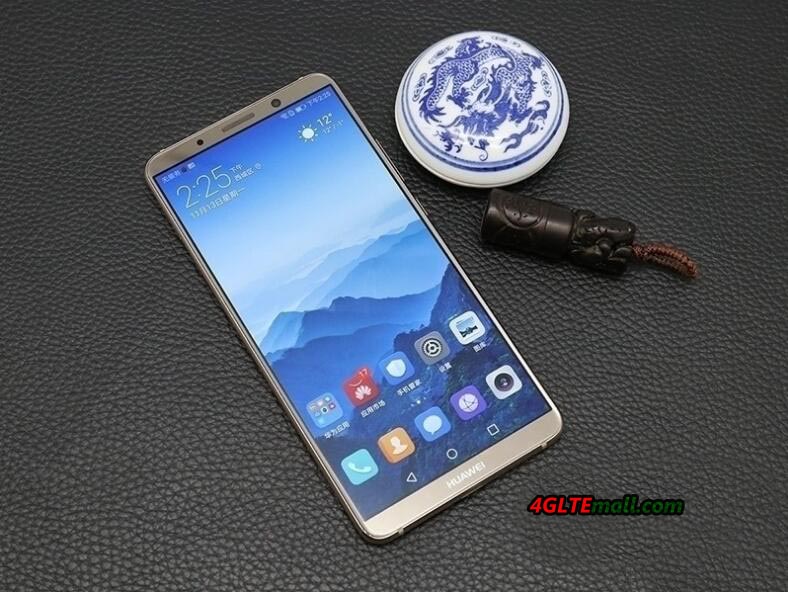
Huawei Mate 10 — Upcoming Top Smartphone

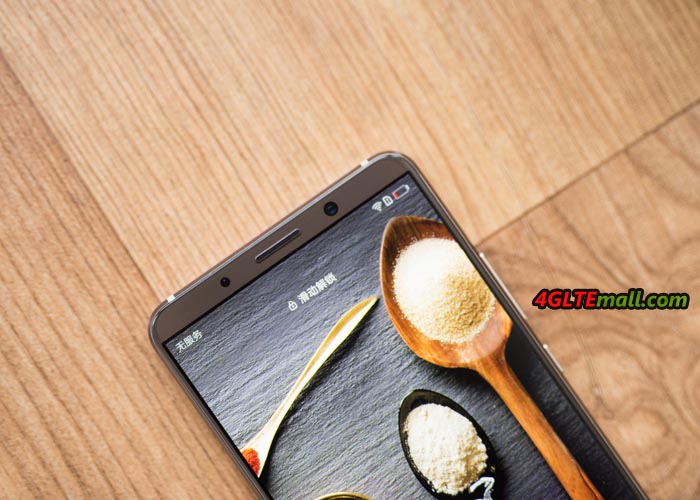
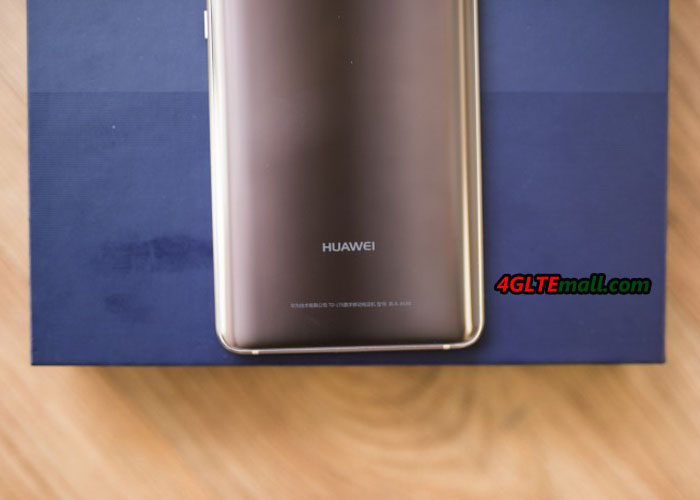
It will take a month until Huawei will present the Huawei Mate 10 and the Mate 10 Pro in Munich on October 16, but the discussions about the new top models are already in progress. At the moment, the web is all about the design of the new Mate models.


In the middle of the week, a video was put into the web, in which the Mate 10 is to be seen. The short clip, however, consists only of several CAD drawings (CAD: computer-aided design), which were made on the basis of the current reports on the Mate 10. Thus, the approximate look of the upcoming smartphone should have been captured, but some details might be different.


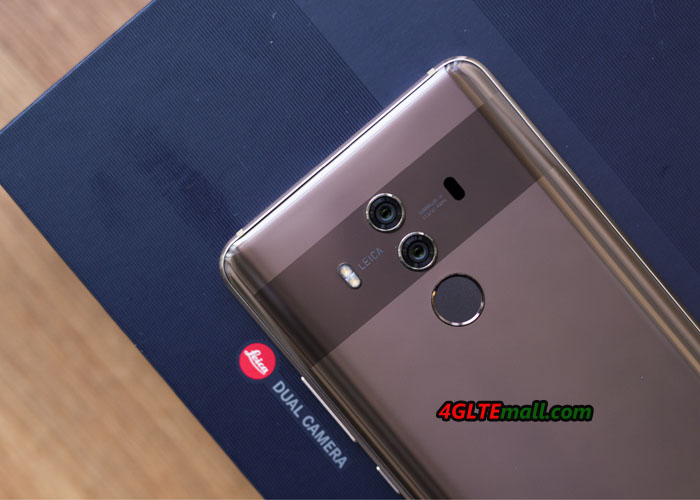
We can see a smartphone with a dual camera on the back, but not surrounded by the glass inlay we know from the Huawei Mate 9. In addition, the fingerprint sensor is located on the front, which seems odd. Because at the start of the Huawei P10, Huawei explained that the front sensor would only be used on models with a display diagonal up to about 5.5 inches. All larger devices, such as the Huawei Mate 10 with its 5.9 inch screen, should be equipped with a fingerprint sensor on the back.


The display of the rendering images to be seen in the video is surrounded by a comparatively wide border, considering that current top smartphones on the market are nearly borderless. Even the trend ratio of 18: 9 seems not to have been respected in the illustrated model. Would Huawei not equal on the Mate 10, or the video just misplayed a wrong picture?


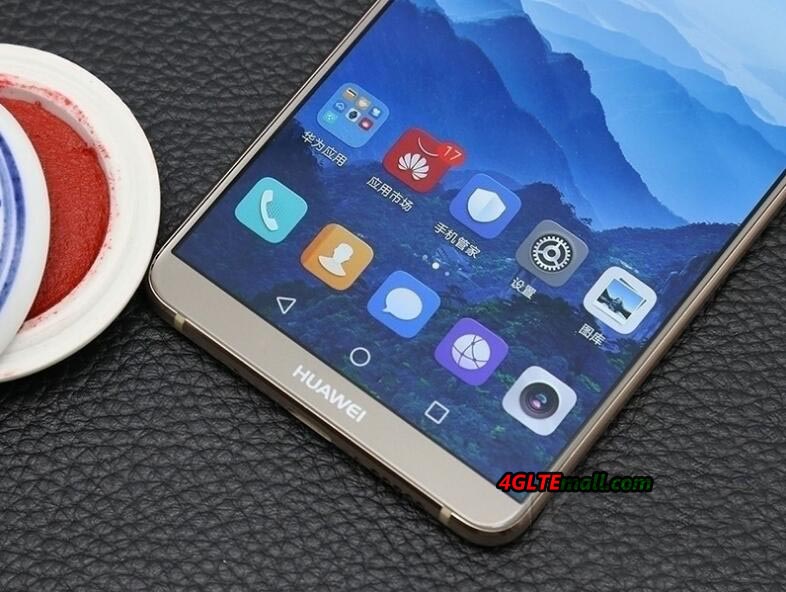
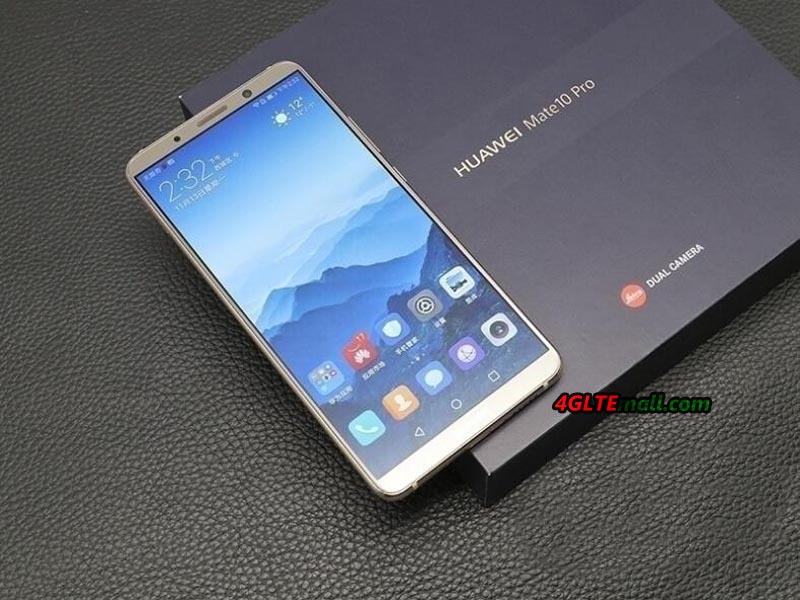
Huawei Mate 10 Pro

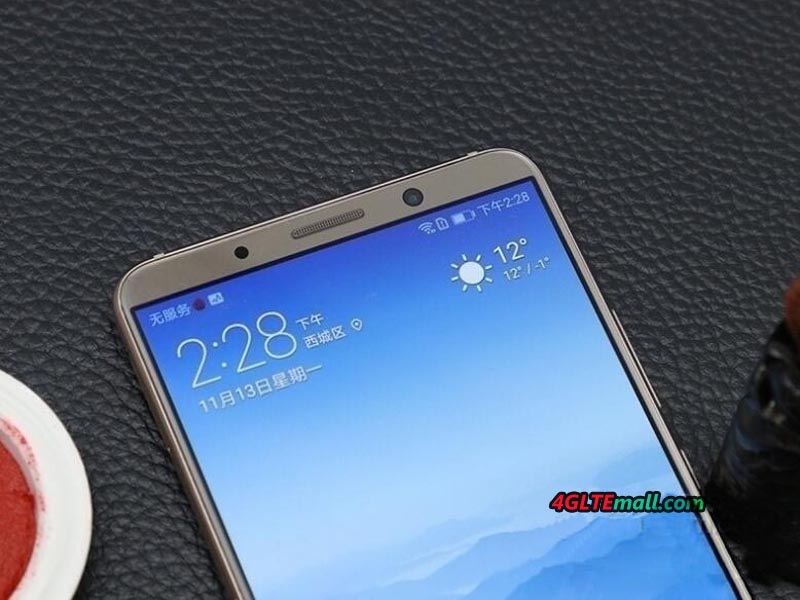
The fact that the Mate 10 does not seem to follow the trend could also be due to Huawei’s introduction of the Mate 10 Pro on October 16. This should correspond more to the current developments in the display. Because on previously unconfirmed live pictures, a smartphone with a nearly borderless screen and without fingerprint sensor on the front looks like Mate 10 pro. The space thus saved was invested in the display, which seems to have the well-known high-gloss format of 18: 9 or 17: 9. The display diagonal is to be slightly larger with 6.3 inches than with the Mate 10, the resolution is probably 1080 x 2160 pixels.


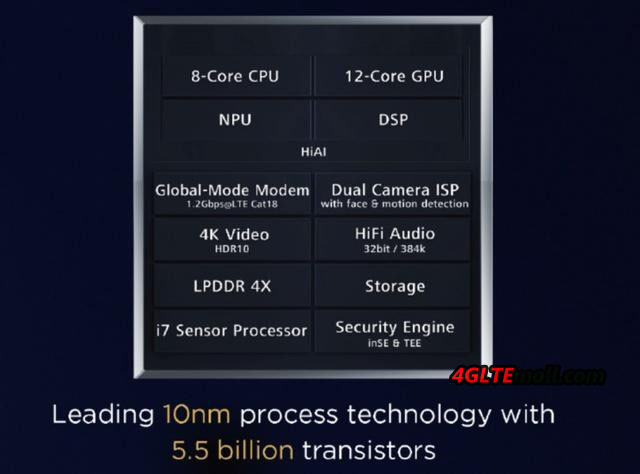
Whether one of the two new Huawei smartphones will have a curved display like the Huawei Mate 9 Pro, remains to be seen. It is already clear that Huawei’s latest processor generation Kirin 970 will be used in the models. It is the first chip system of the manufacturer with a computing unit for neural networks and thus artificial intelligence. The Kirin 970 is manufactured in a very compact 10 nanometer process and, like the predecessor Kirin 960, has four Cortex A73 cores with a clock rate of up to 2.4 GHz and four A53 cores with up to 1.8 GHz. The graphics performance has been improved and an LTE Cat.18 modem is also included.

Huawei Presents HiSilicon Kirin 970 LTE Cat18 Chipset

Huawei presented a new chipset for smartphones at the IFA with the HiSilicon Kirin 970. The Kirin 970 includes a processor, a graphics unit and a mobile radio modem. Especially in the modem, there is some progress compared to the predecessor – the Kirin 960. The Kirin 970 LTE Cat18 supports up to 1.2 GBit/s in the download. In addition, the dual SIM operation supports LTE on both SIM cards at the same time. The Kirin 970 chipset will be used in the Huawei Mate 10 smartphone, which will be presented in mid-October in Munich.

Modern LTE modem

The HiSilicon Kirin 970 is next to the first modem Qualcomm Snapdragon X20, which supports LTE category 18 of the downlink . Thus, speeds of up to 1.2 gigabits per second are possible in a correspondingly developed mobile radio network.

To achieve such high speeds, different 4.5G/LTE Advanced Pro technologies are combined. The Kirin 970 supports, for example, the 4 × 4 MIMO antenna technology and the 256QAM modulation technology. Furthermore, a frequency spectrum of up to 100 MHz can be bundled thanks to the 5CC CA (= five-factor carrier aggregation ).

There is also news about Dual SIM. So far, no smartphone was able to use both SIM slots on LTE at the same time. One of the two cards was therefore always limited to 2G / 3G usage, which is particularly annoying if only an LTE network is available. The Kirin 970 can now also run parallel in the LTE network on both SIM cards, so you can, for example, use the first SIM card to surf via LTE and use the VoLTE in the LTE network via the second card.

Processor, graphics and AI

The HiSilicon Kirin 970 is produced in the 10nm process and is to enable a better battery life than the previous model. An octa-core CPU and a 12-core GPU are integrated in addition to the described modem. The chipset should be particularly suitable for artificial intelligence applications (AI) and be faster and 50x more efficient than a classic quad-core CPU without a AI component through a combination of on-device AI and Cloud AI 25x.

HMD Global Presents New Nokia 8 Android Smartphone

HMD Global, the company behind the smartphone brand Nokia, has finally presented the first and long-awaited high-end model: the Nokia 8. Like Nokia Top models from the past years, the Nokia 8 comes with camera technology from Carl Zeiss, So that high expectations can be placed on image quality. The Nokia 8 has integrated the current Qualcomm chipset (type Snapdragon 835) and achieves speeds of up to 450 Mbps over the LTE network thanks to LTE Cat9 with 3CA.


Monoblock design and lots of performance


The Nokia 8 comes in a “monoblock design” with capacitive buttons according to the HMD Global and has been designed in such a way that the device not only looks good and is well in the hand, but also dissipates heat optimally. The display is 5.3 inches in size and has a very high resolution of 2560 x 1440 pixels (WQHD). With 700nts, it should also be very bright. The integrated battery is 3090mAh strong and not changeable by the user. It has the Qualcomm QuickCharge 3.0 quick-release feature.


The integrated memory is 64 GB in size and can be extended by up to 256 GB via MicroSD memory card. The memory is 4 GB. With the wireless interfaces, the Nokia 8 is very up-to-date, including support of Bluetooth 5.0 and WLAN 802.11ac. The USB Type C interface is especially fast thanks to USB 3.0 and 5Gbps support. Unlike some other high-end smartphones, a 3.5mm headphone jack is also on board.


Zeiss camera


The Nokia 8 is equipped with a dual camera system with Zeiss optics on the back. Both sensors have a resolution of 13 megapixels, the primary sensor takes up color and is equipped with an optical image stabilization, the secondary sensor takes pictures monochrome. The aperture is f2.0. There is an infrared distance meter as well as a dual-tone LED flash. The camera on the front comes with almost the same data (13 megapixels, f2.0), but has no optical image stabilization. The Nokia 8 has a special feature integrated; here the image of the front and the rear camera is simultaneously recorded. The feature can even be used for streaming networks such as Facebook and YouTube.


Software: “Pure Android”


HMD Global is working as an operating system to use a current and almost unchanged version of Android. Pre-installed Android 7.1.1, the manufacturer promises monthly security updates. Through the pure Android, the device is supposed to offer a better user experience than comparable high-end models from other manufacturers. This could be an important purchase point for some users, as many other manufacturers such as Samsung and Huawei often criticize the overloaded and advertising apps blocked user interface. Disadvantage of “Pure Android” might be that certain functions are not present through the pre-installed user interface. But it is always an option for Android.


Availability


The Nokia 8 is to be offered from September 2017 in the colors Polished Blue, Polished Copper, Tempered Blue. In addition to a single SIM version, a dual SIM version of the Nokia 8 is also available, but it can be assumed that HMD Global will market the dual SIM version only via the free trade and not through providers and network operators.


Samsung Galaxy Note 8 LTE Cat16 Smartphone Released

Samsung has introduced the Galaxy Note 8 in New York few days ago. The smartphone is equipped with a modern LTE Cat16 modem and allows speeds of up to 1 Gbit/s in appropriately equipped mobile networks. In addition to the standard version, a dual SIM version is also officially available in some areas, which is in the note series for the first time. The other technology includes a 6.3 inch display, a dual camera and 64GB internal memory.


Case with Infinity Display

The Galaxy Note 8 looks similar to the Galaxy S8 Plus, it is only slightly more angular than the sister model. The display is 6.3 inches in size, has an aspect ratio of 18.5: 9 and is rounded off to the sides, which is already known from the Galaxy S8. The resolution is 2960 x 1440 pixels (QHD+). Since the edges on the sides as well as the top and bottom were kept as narrow as possible, Samsung applies the display as “Infinity Display”. An important difference to the Galaxy S series is, of course, the S-Pen input pen, which is simply part of the Samsung Galaxy Note series.


The case of the Samsung Galaxy Note 8 is dust and water proof according to IP68. With 162.5 x 74.8 x 8.6 mm, the Galaxy Note 8 is quite large, but still makes a slim figure compared to other devices from the 6-inch category. The weight is 195 grams.


Dual camera system

A further novelty compared to its predecessor Galaxy Note 7 and the Galaxy S8 is the dual camera. The Note 8 has two camera sensors each with 12 megapixel resolution, one with wide-angle lens and one with a kind of tele-lens, so that like the Apple iPhone 7 Plus, a certain zoom can be achieved. The aperture of the wide-angle lens is f1.7, the telephoto lens has a diaphragm of f2.4. It is worth mentioning that both sensors have optical image stabilization (OIS).


Fast processor with Android 7.1.1

As a chipset, a Samsung Exynos 8895 is used in the European version of the Samsung Galaxy Note 8, the memory is 6 GB. About 51 GB of the internal 64 GB memory ex factory for the user are available, a memory extension via MicroSD memory card is naturally possible.


In addition to Gigabit LTE of the category 16, of course, all other current radio technologies are on board, just as one expects it from an expensive high-end smartphone. The Galaxy Note 8 supports WLAN 802.11ac with MU-MIMO antenna technology, it can support VoLTE (voice over LTE) and WLAN calls and it supports Bluetooth 5.0. Android 7.1.1 is used as the operating system.

The battery of the Galaxy Note 8 is 3.300 mAh and can be charged both via USB Type C cable as well as wireless. A quick-charge mechanism is supported for both cordless charging and normal charging.
 

Dual-SIM Available

The Samsung Galaxy Note 8 comes in September. While only a single SIM variant will be available in the free trade for network operators, a dual SIM version can be pre-ordered in the Samsung Online Shop. Currently, the price of Samsung Galaxy Note 8 is at high side. If you can wait a few months, you will be able to benefit from a significant drop in prices.
Huawei B618 Status Icons

Using the status icons, you can discern the operating status of the Huawei B618 4G Router.

The following table describes the icons displayed in the upper right corner of the Huawei B618 4G Router user interface.

Item Status
SIM/USIM/UIM card : The SIM/USIM/UIM card is faulty; PIN/PUK is not verified.NOTE:

·         Contact your service provider to check whether a SIM/USIM/UIM card is required.

·         The SIM/USIM/UIM card is provided by your service provider. To find out more about the card, contact your service provider.

Internet : Uploading data

: Downloading data

: Uploading and downloading data simultaneously

 : A dial-up connection has been set up, but no data is being transmitted.

WLAN : WLAN enabled.

: 5G WLAN enabled

: The indoor 5G WLAN is enabled.

: WLAN disabled.

Signal : These icons indicate the signal strength from weak to strong.
SMS  : New messages.

: Your local inbox is full.

Ethernet : The Mobile Broadband is connecting to an Ethernet network.

: An Ethernet connection is detected.

Update : Update available.


Check more details about Huawei B618 4G Router here: https://www.4gltemall.com/huawei-b618-lte-cat11-router.html

Huawei B618 Connection Settings

Connection

To use the Huawei B618 to access the Internet, you must create a network profile or set the default network profile and operator’s network.

  • Creating a Network Profile
    If you are using theHuawei B618 Router for the first time, you must create a network profile to access the Internet.
  • Setting the Default Network Profile
    After you set the default profile, theHuawei B618 Router accesses the Internet via the default operator’s network.
  • Setting the Operator’s Network
    After configuring the settings, theHuawei B618 Router can quickly find networks.
  • Accessing the Internet Using the Cellular Data Network
    Use the following method to connect theHuawei B618 Router to the Internet.
  • Accessing the Internet Using an Ethernet Connection
    Configure Ethernet connection settings the first time theHuawei B618 Router connects to the Internet using an Ethernet connection.
  • Connecting Clients to theHuawei B618 Router over a WLAN
    After WLAN is enabled on the Huawei B618 Router, clients can connect to the Huawei B618 Router and access the Internet using it.
  • Viewing the Clients Connected
    Check the number of clients connected to theHuawei B618 Router and their details.
  • Adding a Client to the Blacklist
    On theHuawei B618 Router‘s web management page, you can add unwanted clients connected to the Huawei B618 Router to the blacklist to better secure the Wi-Fi network.


——————————————————————————————————————– 


Creating a Network Profile

If you are using the Huawei B618 Router for the first time, you must create a network profile to access the Internet.

Procedure

  1. Choose SettingsDial-up > Profile Management .
  2. Click New Profile.
  3. Set the profile-associated parameters.

 NOTE:

  • The value of Profile namecan contain a maximum of 20 characters, including the following: 0-9, a-z, A-Z, blank space, and ! # $ ( ) * – . / = @ [ ] ^ _ { } ~ | , ; \ % + ?
  • Contact your service provider for detailed parameter settings.
  1. Click Save.


Setting the Default Network Profile

After you set the default profile, the Huawei B618 Router accesses the Internet via the default operator’s network.

Procedure

  1. Choose SettingsDial-up > Profile Management .
  2. From the Profile namedrop-down list, select a network profile.
  3. Click Apply.


Setting the Operator’s Network

After configuring the settings, the Huawei B618 Router can quickly find networks.

  • Selecting the Operator’s Network Type
    Select your operator’s network type to find and log in to the network quickly.
  • Searching for and Registering with a Network
    The Huawei B618 Routersupports both automatic and manual network registration.


Selecting the Operator’s Network Type

Select your operator’s network type to find and log in to the network quickly.

Context

For details about your network type, contact your operator.

Procedure

  1. Choose SettingsDial-up > Network Settings.
  2. From Preferred mode, select a mode.
  3. Click Apply.


Searching for and Registering with a Network

The Huawei B618 Router supports both automatic and manual network registration.

Procedure

  1. Choose SettingsDial-up > Network Settings.
  2. From Mode, select a mode.
    • Auto: The Huawei B618 Routersearches for an available network and registers with the network automatically.
    • Manual: You need to search for an available network and register with it manually.
  3. Register with a network.
    • In Automode, click Apply.
    • In Manualmode, select one of the networks found and click OK.


Accessing the Internet Using the Cellular Data Network

Use the following method to connect the Huawei B618 Router to the Internet.

Procedure

  1. Choose SettingsDial-up > Connect .
  2. Click On.
  3. Connect to the Internet.

 NOTE:

  • By default, Huawei B618 Routerconnect to the Internet automatically.
  • You can enable or disable the data roaming function.


Accessing the Internet Using an Ethernet Connection

Configure Ethernet connection settings the first time the Huawei B618 Router connects to the Internet using an Ethernet connection.

Procedure

  1. Using a network cable, connect the Huawei B618 Routerto a router’s WAN port or the Ethernet port on a wall.
  2. Set Ethernet parameters according to Setting Up the Ethernet Connection Mode.


Setting Up the Ethernet Connection Mode

This section describes how to set up the Ethernet connection mode and parameters.

Procedure

  1. Choose SettingsEthernet > Ethernet Settings.
  2. Set the Huawei B618 Router‘s connection parameters according to the following table.
Application Scenario Configuration Method
The Huawei B618 Router selects the best network access mode based on the network environment. a.       Select Auto from the Connection mode drop-down list.

b.       Set Point-to-Point Protocol over Ethernet (PPPoE) and dynamic IP parameters. For details, see PPPoE Dial-up Settings and Dynamic IP Settings.

Access the Internet using a PPPoE dial-up connection or a dynamic IP address. c.       Select PPPoE + Dynamic IP from the Connection mode drop-down list.

d.       Set Point-to-Point Protocol over Ethernet (PPPoE) and dynamic IP parameters. For details, see PPPoE Dial-up Settings and Dynamic IP Settings.

You have the user name and password provided by your network service provider for the PPPoE dial-up connection. e.       Select PPPoE from the Connection mode drop-down list.

f.        Enter the user name and password provided by your network service provider.

g.       Set the MTU.

The computer IP address is automatically assigned by the network service provider. h.       Select Dynamic IP from the Connection mode drop-down list.

i.         Select the Set DNS server manually check box, Enter Primary DNS server and Secondary DNS server.

NOTE:

This step is optional. By default, the Huawei B618 Router automatically obtains the Domain Name Server (DNS) address.

j.         Set the MTU.

You have the network parameters, such as a fixed IP address, subnet mask, gateway IP address, and domain name server (DNS) address, provided by your network service provider. k.       Select Static IP from the Connection mode drop-down list.

l.         Enter the IP address, subnet mask, gateway address, DNS address (optional), provided by your network service provider.

m.     Set the MTU.

The client is connected with a network cable, but no Ethernet connection is available. Select LAN only from the Connection mode drop-down list.

NOTE:

You can also unplug the network cable and access the Internet using the cellular data network.

  1. Click Apply.


Connecting Clients to the Mobile Broadband over a WLAN

After WLAN is enabled on the Huawei B618 Router, clients can connect to the Huawei B618 Router and access the Internet using it.

Prerequisite

The Huawei B618 Router is connected to the Internet.

Procedure

  1. Choose SettingsWLAN > WLAN Basic Settings .
  2. View the default value of SSID.

 NOTE:

  1. Enter SSIDon clients.

After connecting to the Huawei B618 Router, clients can access the Internet using the Huawei B618 Router.


Changing the SSID

This section describes how to change the service set identifier (SSID).

Procedure

  1. Choose SettingsWLAN > WLAN Basic Settings .
  2. From the SSID list, choose the SSID you want to change, and click Edit.
  3. In SSID, enter the SSID.
  4. Click Apply.


Setting the WLAN Key

To improve the security of the wireless local area network (WLAN), set a security key for the WLAN.

Procedure

  1. Choose SettingsWLAN > WLAN Basic Settings .
  2. From the SSID list, choose the SSID you want to change, and click Edit.
  3. Select Security mode.
    • None(open): No encryption. No security key is required when clients access the WLAN.

 NOTE:

For daily use, it is recommended that you set a security key, to improve the security performance of a WLAN.

  • WEP: This stands for Wired Equivalent Privacy.
  • WPA2-PSK: This is the second version of WPA-PSK and is more secure than WPA-PSK.
  • WPA/WPA2-PSK: Both WPA-PSKand WPA2-PSK encryption modes are supported. Clients can access the WLAN in WPA-PSK or WPA2-PSK
  1. Enter a security key.

 NOTE:

Select Show password to view the security key that you have entered.

  1. Click Apply.

Setting a WPA Security Key for the WLAN

  1. From Security mode, select WPA2-PSK.
  2. In WLAN key, enter the security key. For example, 12345678.
  3. Click Apply.


Enabling or Disabling the SSID Broadcast

If the service set identifier (SSID) broadcast function is enabled, the Huawei B618 Router broadcasts the SSID of the wireless local area network (WLAN) facilitating clients’ access to the WLAN. The disadvantage is that unauthorized clients can also access the WLAN. If the SSID broadcast is disabled, the Huawei B618 Router does not broadcast the SSID of the WLAN. So the SSID must be entered manually and correctly from a client before the client accesses the WLAN. This improves the security of the WLAN.

Procedure

  1. Choose SettingsWLAN > WLAN Basic Settings .
  2. From the SSID list, choose the SSID you want to change, and click Edit.
  3. Set SSID broadcast.
    • Enable: to enable the SSID broadcast.
    • Disable: to disable the SSID broadcast.
  4. Click Apply.

 NOTE:

During the process of setting up the WLAN, you can set the SSID broadcast to Enable to facilitate the access from clients. After the WLAN is set up, set the SSID broadcast to Disable to improve the security of the WLAN.


Viewing the Clients Connected

Check the number of clients connected to the Huawei B618 Router and their details.

Procedure

  1. Choose SettingsSecurity > Device Management.
  2. Under Connected WLAN clients, view the clients connected to the Huawei B618 Router.


Adding a Client to the Blacklist

On the Huawei B618 Router‘s web management page, you can add unwanted clients connected to the Huawei B618 Router to the blacklist to better secure the Wi-Fi network.

Procedure

  1. Choose SettingsSecurity > Device Management.
  2. Under Connected WLAN clients, check the information about clients connected to the Huawei B618.
  3. Find the client you want to add to the blacklist, and click Block to display the Confirm dialog box.
  4. Click OK.

 NOTE:

  • Under Blacklist, view all clients on the blacklist.
  • To remove a client from the blacklist, click Delete under Blacklist.


Check more details about Huawei B618 4G Router here: https://www.4gltemall.com/huawei-b618-lte-cat11-router.html

Huawei B618 Setting up a VPN Connection

A virtual private network (VPN) is a private network set up across a public network. A VPN adopts security technologies such as encryption and identity verification to guarantee the privacy and security of your data communications. For example, if you need to access your company’s intranet, you can set up a VPN connection with your company’s VPN server. This will allow you to access the intranet resources of your company without actually going to the office, but is as secure and convenient as using the intranet in the office.

Procedure

  1. Choose SettingsVPN.
  2. Select and enable an access type.
  3. Set the VPN parameters.
L2TP VPN client The Layer 2 Tunneling Protocol (L2TP) is a virtual tunneling protocol usually used in virtual private networks. If the VPN server uses the L2TP, you can set the L2TP function of Huawei B618 Router to set up a connection between the VPN server and your computer.

The LNS address, tunneling password, PPP user name, and PPP password for the configuration are provided by your VPN server supplier.

·         Host Name: Enter the customized Huawei B618 Router name. The VPN server uses the identification name to identify the connected host.

·         Handshake interval (s): After a VPN connection is set up, Huawei B618 Router will regularly send status reports to the VPN server based on time intervals. If the VPN server hasn’t received any status reports for a long time, the VPN will be disconnected.

PPTP VPN client The Point-to-Point Tunneling Protocol (PPTP) is a new enhanced security protocol developed based on the PPP. The PPTP supports multi-protocol virtual private networks and is able to enhance security through Password Authentication Protocol (PAP) and Extensible Authentication Protocol (EAP). Remote users can dial up to access the ISP and securely access their company’s network through the Internet.

The dial-up server address, user name, and password for the configuration are provided by your VPN server supplier.

  1. Click Apply.


Check more details about Huawei B618 4G Router here: https://www.4gltemall.com/huawei-b618-lte-cat11-router.html

Huawei B618 Sharing Files Using the DLNA Function

Sharing Files Using the DLNA Function

After the DLNA is enabled, you can access the media files shared from a mobile storage device (such as an SD card) that is connected to the Huawei B618 4G Router over another device that supports the DLNA.

Procedure

  1. Choose MoreSharing > DLNA.
  2. Select Enable to enable the DLNA function.
  3. Click Select. In the displayed Select Folder dialog box, specify the file sharing path.
  4. Click OK to close the dialog box.
  5. Click Apply.

 NOTE:

If you want to share all files in the mobile storage device, set the Directory to All.


Check more details about Huawei B618 4G Router here: https://www.4gltemall.com/huawei-b618-lte-cat11-router.html