Huawei B900 AI Cube Router Review

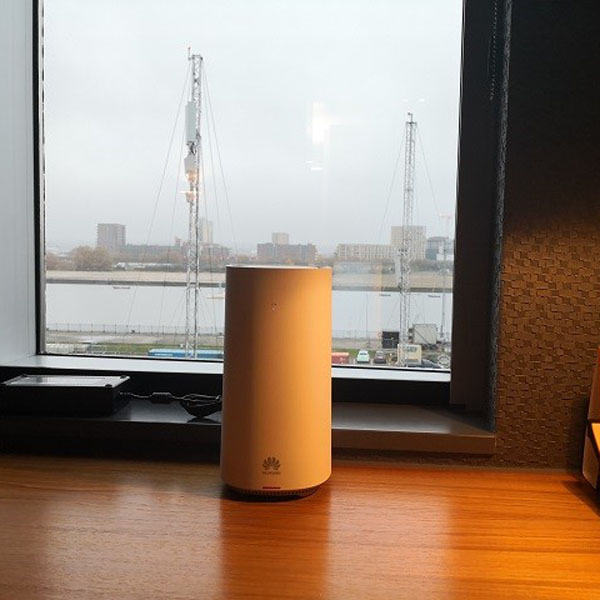
At IFA 2018, Huawei presented a new device named “Huawei AI Cube(B900-230)”. The Huawei AI Cube is a smart speaker equipped with Amazon Alexa, an audio assistant developed by Amazon in the US. In addition to its function as a smart speaker, it also has a function as a stationary LTE wireless router. Huawei B900 AI Cube combines a 4G Modem, a home WiFi router, high-end 360-degree wireless speaker, and a Huawei-Amazon collaboration that promises Alexa integration and some not-yet-articulated AI capabilities.

Huawei B900 AI Cube Appearance

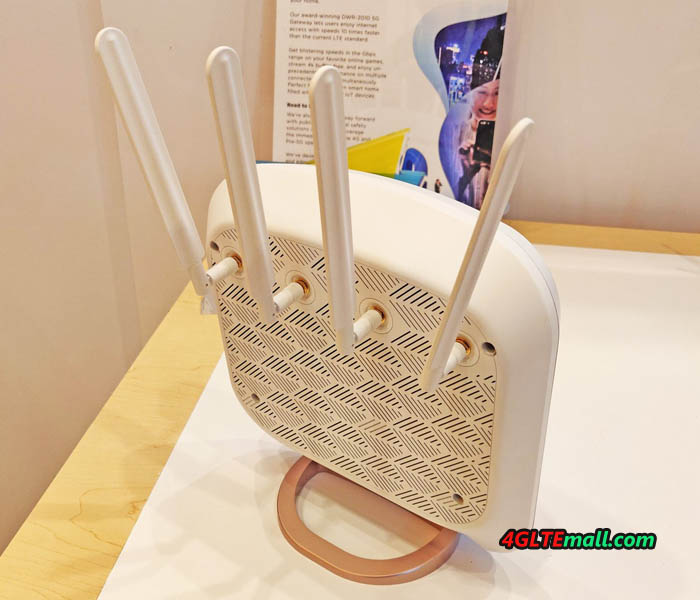
The Huawei B900 AI Cube looks a little bit similar to its predecessor Huawei B528 but there is the obvious difference. On the top, there are three keys available: one volume up key, one volume down key, and one mute key. On the body, there are three LED indicators for Signal, WiFi and LAN. However, unlike the latest Huawei B618s-22d WiFi router, there is no connector for the external antenna in the B900 AI Cube.

Below the indicators, there are two buttons: Power and WPS buttons. On the bottom of the Huawei B900 WiFi router, the product name Huawei B900-230, IP address (192.168.1.1), User name(admin), SSID, WiFi key, WPS pin, Power input and Made in China information are listed on the bottom label.


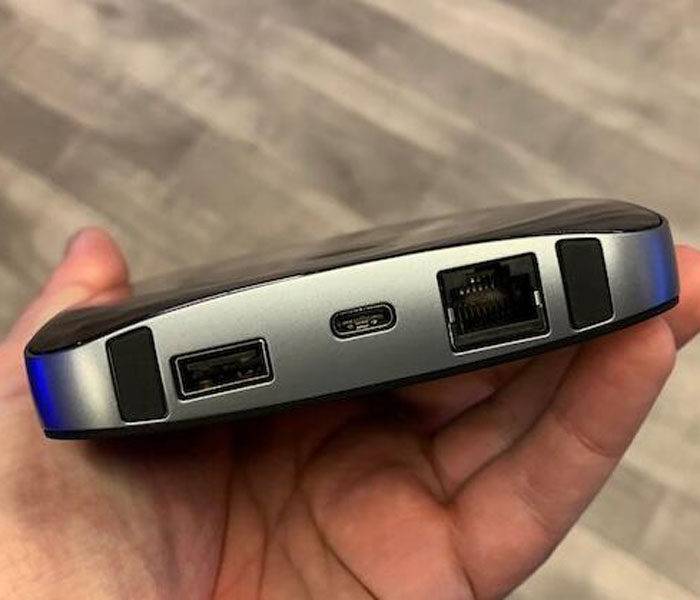
The SIM card slot is also at the bottom with the Reset hole. The Huawei B900 WiFi cube uses Micro SIM card size. Below the IMEI & S/N number label, there is an Ethernet port for LAN and WAN. The power plug port is at the side of the Ethernet port.

Huawei AI Cube B900 Smart Speaker Function


The Huawei B900 AI Cube Router can be controlled via voice assistant Alexa with around 50,000 voice commands. For example, the router can play music or Internet radio through the built-in speaker. Smart home hardware such as TVs, Wi-Fi bulbs or refrigerators can also be controlled, as long as they are compatible with Amazon Alexa.


Huawei B900 Specifications

As a stationary LTE WiFi router, the Huawei B900-230 cube could achieve download speed up to 300Mbps and upload speed to 50mbps. It has 802.11ac with dual-band Wi-Fi, in total up to 1.200 MBit/s are attainable over WLAN according to Huawei.. You get four microphones with far-field voice recognition. How many users could be connected with the cube is unknown yet, but we list the general specifications of Huawei B900 AI Cube for reference:


* Support 4G LTE Band B1/B3/B7/B8/B20/B32/B38

* Support 4G LTE Cat.6 2CC Technology

– CA Bands: CA_3C/CA_7C/CA_38C/CA_1A-8A/CA_1A-20A/CA_3A-7A/CA_3A-8A/CA_3A-20A/CA_7A-8A/CA_7A-20A/CA_20A-32A/

* Support 3G UMTS/WCDMA/HSPA+ B1/B8

* LTE download speed to 300mbps, upload speed to 50mbps

* WLAN: WiFi 802.111a/b/g/n/ac, dual-band(2.4GHz & 5GHz), 2 x 2 MIMO, 2 x 2 DBDC(Dual-band, dual-carrier)

* External Antenna connector: No

* SIM Card size: Micro SIM (3FF)

* Interfaces:

– 1 x RJ-45 for data, GE

– 1 x SIM Card slot (3FF), 1 x power interface

– 1 x Hi Key/ 1 x Reset Key/ 1 x Power key

– 2 x Voice + – / 1 x Mute Key / 1 x Pause Key

* Speaker: 15W Mono Speaker

* Voice Input: 4 x Microphones

* Main features: Huawei Hilink, Huawei Histen, Amazon Alexa, Far Field Voice Recognition

* Power: AC 100V – 240V, DC 12V, 2A

* Dimensions: 218mm (height) x 116mm (diameter)

* Weight: 900g


Huawei said the Europe version would be available around the end of 2018, but not mention about the availability for US market. Regarding the Huawei B900 AI Cube price, Huawei didn’t give any information. We have to wait for the news from Huawei.


ZTE R218 4G Mobile WiFi Router Review

If you had known the ZTE MF920 4G MiFi router, you will know the ZTE R218 soon after we tell you the R218 comes from the ZTE MF920 with Vodafone customization. Vodafone introduced the MF920 to its product range and rename it as R218. The official name is Vodafone R218 Mobile WiFi and someone may also call it ZTE R218. Even though the ZTE R218 is newly presented by Vodafone the public, but the Vodafone R218 specs is not latest new comparing with other ZTE 4G LTE hotspots. Below you will see more details for the Vodafone R218 review.


First, we list the details specs and feature for the ZTE R218 in a table:

Features and Specs of the Vodafone R218
Manufacturer and model Vodafone R218 from ZTE
Chipset Qualcomm MDM9207
LTE Category Cat.4
Download rate Up to 150 Mbps
Upload rate Up to 50 Mbps
Supported LTE bands 800 MHz, 900 MHz, 1800 MHz, 2600 MHz
Backward compatible with HSDPA (42.2 Mbps), EDGE, GPRS
Support for LTE-Advanced No
MIMO Support No
Connection for external antenna No
Integrated telephone system No
Network | LAN & WLAN
LAN ports no
WLAN standards 802.11 n (2.4 GHz)
5 GHz WLAN support No
Encryption WEP, WPA, WPA2
WLAN hotspot function: Yes
Others
Battery pack 2,300 mAh
Dimension 105 x 64 x 14 mm at 102 g
USB 1x micro USB
Memory card expansion No
Release time 07/01/2018
Price 129.00USD
available at: » www.4gltemall.com
Document download
Datasheet » Download Vodafone R218 datasheet
User manual » Download Vodafone R218 manual


Vodafone R218 – LTE Download Speed to 150Mbps

The Vodafone R218 was available in the summary of 2018 in Germany, but if you don’t like the customized one, you may turn to the original model ZTE MF920. Behind the Vodafone R218 branding, the model number ZTE MF920V could be seen. With a Micro SIM inserted, the Vodafone R218 could achieve download speed up to 150Mbps, which allows devices such as a smartphone, a notebook and a tablet to receive 4K movies simultaneously via Netflix. Those who want to share multimedia files with others can access a speed up to 50mbps for upload. The WiFi network itself transmits up to 300Mbps to connected devices. The removable battery is designed to provide up to 10 hours of internet access. Interestingly, the battery of Vodafone R218 comes from the competitor Huawei.

The LCD display keeps the user up to date with the operating status such as battery level, received SMS, signal strength and the WiFi status. The ZTE MF920V could be configured via a web interface or APP for mobile devices. In the manual, there is QR code for smartphones to scan and download the APP. The Vodafone R218 is compatible with all mobile devices with Android or IoS OS. The 4G wireless mobile router does not offer many configuration options, but the firewall is integrated and WEP, WPA and WPA2 encryption standards are supported. The IP assignment is either static or dynamic. And the current data consumption and the number of sent and received SMS can be seen in the web interface at any time.


Summary

As we said, the Vodafone R218 (also ZTE MF920V) is not a high-end mobile WiFi hotspot. So it would be enough for daily use, but don’t expect too much from it if you want to surf at very fast speed through this mobile WiFi. Actually, ZTE also presents many LTE advanced mobile WiFi models to the public, such as ZTE MF971V, ZTE MF970, ZTE MF980 etc…If you want to get faster surfing speeds, you may check the higher-level LTE MiFis.

ZTE MF971V LTE Cat6 MiFi Review

We had introduced ZTE LTE Cat6 MiFi MF970 last year, actually, ZTE also presented another LTE Cat6 MiFi MF971V and it’s available for many network providers worldwide. Even though it’s already an old mobile WiFi hotspot, many people don’t know this ZTE 4G mobile hotspot and its specs & features. Today we will review the ZTE MF971V LTE mobile hotspot.

ZTE MF971V Appearance

The appearance of ZTE MF971V looks very similar to ZTE MF970 uFi, there is a small LED screen on the front. The ZTE logo is at the left side while the LTE word on the other side. On the top edge side, there is a WPS button with the power button. And there is a connector for external 4G Antenna. On the opposite side, there is also a connector for a 4G LTE antenna. The SIM card slot is available with the USB port. The back cover of the ZTE MF971V could not be removed, unlike the competitor Huawei E5786. But both the ZTE MF971V and Huawei E5786 batteries are built-in and non-removable.


ZTE MF971V Technical Specifications and Features

With LTE category 6 bandwidth technology (carrier aggregation), ZTE MF971V could achieve download speed up to 300mbps and upload speed up to 50mbps. As a WiFi Router, ZTE MF971V hotspot 4G could allows simultaneous connection via WiFi up to 10 devices or with a PC using a USB cable. This makes the ZTE MF971V ideal for use at home, taking with you on holidays, for business meetings and on a longer journey. In places with a weaker range, an external antenna can be connected to the device. ZTE MF971V WiFi Router is also distinguished by its small size and modern design, and the clear display informs about the current status of the battery, Wi-Fi networks, coverage of the cellular network and about received SMS messages. The built-in 2300 mAh battery provides up to 500 hours of standby time and up to 11 hours of operating mode. ZTE MF971V weighs approximately 100 g.

Here we list the details specifications of ZTE MF971V for general review:


  • Support 4G Band: LTE FDD B1/2/3/4/5/7/8/17/12/20/28 TDD B38/40
  • (FDD 2100/1900/1800/1700/850/2600/900/700/800Mhz TDD 2600/2300Mhz)
  • Carrier Aggregation: 4G LTE band B3+B7 / B3+B3 / B20+B7 / B3+B20 / B7+B20 / B3+B5
  • 3G Band: DC-HSPA+/HSPA+/HSPA/UMTS B1/B2/B5/B8
  • 2G BAND: GSM/GPRS/ED GE
  • WLAN: 802.11 b/g/n/ac, dual band 2.4GHz and 5GHz
  • LTE Category 6 download up to 300Mbit/s, upload to 50Mbit/s
  • DC-HSPA+DL (Download) up to 43.2Mbps, UL (Upload) u p to 5.76Mbps

Other Feature:

  • 1 x SIM card slot – Micro SIM (12 x 15mm)
  • 1 x micro USB connector for charging
  • 1 x 1.44 TFT-LCD
  • Power switch, a MENU switch, RESET switch
  • Built-in LTE/UMTS/GSM and WLAN high gain antenna
  • Battery: 2300 mAh (Max Work 11 hours, Max Standby 500hr)
  • 2 X TS9 external antenna connection
  • Maximum of 32 wireless users
  • Operating: 0℃ to +35℃
  • Dimension: 104 x 65 x 14.3 mm
  • Weight: 101g (including the battery)


If you want to know more details about ZTE MF971 LTE-A Mobile WiFi hotspot, click here: https://www.4gltemall.com/zte-mf971v-lte-cat6-mobile-wifi-hotspot.html

TP-Link Deco M5 Review

TP-link Deco M5 is a WiFi router available in 2017 and now is well-known in many countries. The highlight of TP-Link Deco M5 is that WiFi mesh system which provides WiFi throughout the house, at high speed and without interruption. With the arrival of the new WiFi mesh routers, it is finally easy to realize a good WiFi connection in every nook and cranny of the house without pulling wires.

What is WiFi mesh?

These new WiFi mesh systems work as follows; Each WiFi point is connected to the other units via a mutual wireless connection. Each device has a separate WiFi transmitter that is used purely for mutual communication between these units.


WiFi devices such as your smartphone and tablets are connected to the network via a private WiFi transmitter in the unit. The big advantage is that the available bandwidth of such a WiFi point does not have to be shared between for example your tablet and the mutual communication between the different WiFi points.

The main advantage, of course, is that you do not have to pull any wires. For example, you put a unit in the living room, a unit on the first floor in a bedroom and the third unit in the attic. These three units form one large WiFi network together.


TP-link Deco M5 WiFi Roaming

An additional advantage of these WiFi mesh systems is that they ensure that connected equipment is always automatically connected to the best available transmitter. They also call this technology “WiFi roaming”.

Suppose you have a station on each floor and walk from the attic to the ground floor with your tablet while watching a movie, then the system will automatically and without interruptions transfer the signal to the wifi point with the best connection.


TP-Link Deco M5 Test

The Deco M5 system comes with 3 separate mesh routers that are identical so it does not matter which unit you will use as the main unit. In addition to the routers, there are 3 power adapters and a LAN cable. You connect 1 of the units to the LAN port of the modem/router, then download the free app on your smartphone and start the installation.


TP-Link Deco M5 installation and configuration

The installation is really very simple and within 5 minutes the system is installed. You will first have to create a TP-Link cloud account by choosing an e-mail address and password. Next you will be asked to enable your location data and bluetooth on the smartphone. After logging in you can start the installation.


The TP-Link Deco M5 is installed via bluetooth and during the configuration, you will have to stand next to each unit with the smartphone to install the unit. After that, the entire system can be centrally controlled from the app.

After starting the app, it will automatically find the deco nearby and will first be asked to choose a name and password for your wireless network. After filling in a network name and password, you will be asked where the Deco unit is located. So you can easily indicate in which room of the house the unit is located to get a clear overview of the network later.


After choosing, the Deco will be configured and the LED will turn blue when it is ready for use. In principle, the system can already be used, but we repeat this step two more times to install the two other units. The app also asks you if you are ready or want to add another unit at that moment.


To configure the other two units, you have to stand in the vicinity of the units as the installation works via bluetooth and can therefore only be done at a short distance. When you have finished configuring the units, the network is ready for use. The whole process takes at most 5 minutes!

TP-Link Deco M5 APP options

When the installation is complete you can further configure the system via the TP-Link App if desired. The Deco M5 system has a lot of nice options. The home screen shows immediately which Deco M5 units are connected and what the last measured internet speed is. You can also see directly in this screen which devices are all connected to the system. If you click on the device, you will receive more details about the device and you can add it to a group.

Such a group is useful because you can deny these groups WiFi access at certain times and filter content. This is useful for families with small children.


TP-link Deco M5 Content filtering and WiFi schedule

This division into groups is relatively easy by giving a name to the group and then choosing to what level the group belongs. This way you can choose a group for small children or adults or create your own group. It is possible to block certain websites or content and thus you have full control over what users see. You can then only access these groups at certain times to the internet. If you do not want the children to be on the Internet after 8 hours, except on weekends, you can easily arrange this.


TP-link Deco M5 WiFi guests network and security

Through the app you can throw a WiFi guest network in the air with a few taps on the screen. This guest network is separate from the rest of the network and can be provided with its own network name and password. Of course you can also manage the connected devices with a WiFi scheme and content filtering. This way you can give visitors access to your internet connection, but you have complete control over what they view and when.

Unique to the TP-Link Deco M5 is that there is Anti-Virus software from Trend Micro. This actively monitors the network for viruses and protects all equipment before the malicious software can be installed.


TP-link Deco M5 QoS

With the QoS function in the TP-Link Deco M5, you can easily give priority to certain data. So you can choose that gaming gets more priority compared to chatting and surfing, or vice versa. You can also set the QoS settings yourself if you do not want to use the preconfigured priority list. With the help of handy sliders, you can screw the level up or down per part.


TP-link Deco M5 WiFi performance

The TP-Link Deco M5 is therefore easy to configure and has some nice options in the app, but the most important of these are the performance of the system. We are very pleased with the results of the Deco M5, we get the maximum out of my 300 Mbps through wired connection and wirelessly we also achieved almost the full speed. This speed is really more than enough to stream movies from Netflix, for example, even in 4K resolution. Even wireless gaming should not be a problem with this performance.


TP-link Deco M5 Disadvantages

The Deco M5 is a bit slower with roaming. If you walk between the different points, switching between the wifi points can take a little longer than with Amplify. But then we are really talking about a difference of no more than 10%. No disadvantage for our test, but for some users maybe: you have to create a TP-Link cloud account at the beginning and turn on your GPS location. If you are very fond of your privacy/anonymity, you may not like this.

The app is sometimes not entirely translated in some languages. There are some English texts hidden here and there, but that will not influence for normal use.


TP-link Deco M5 Advantages

Anti-Virus software is built in which is very nice to protect your equipment. Another great advantage is the price of this set. The price of TP-link Deco M5 is very attractive now comparing the price when it’s first available in the market. A third advantage of the TP-Link Deco M5 is its design. The router of the mesh points Deco M5 units are small and handy to place.


Conclusion

The TP-Link Deco M5 is currently the best WiFi mesh system available. The price/quality ratio is very good, the app is convenient and extensive and the WiFi range is top notch. The test was carried out in a new house on 3 floors, where WiFi signals often pass through walls and ceilings without any difficulty. The fact that we were able to realize a perfect WiFi network at high speeds indicates that the quality is good!

TP-Link Archer MR400 4G WiFi Router Test

More and more 4G LTE WiFi routers are available in the market; we’ve had the opportunity in recent months to talk about some of the best Wi-Fi routers to cover your entire home without a single WiFi empty area (Would it be Google Wi-Fi, Netgear’s Orbi or Deco M5 from TP-Link?). But while summer is here and so is the vacation time, there is the question of connecting wireless network not at home or on the go.

How to solve this problem? Pull miles of Ethernet cable? Of course not. But why not use a 4G Wi-Fi router, which connects to the network with only one SIM card and then redistribute this connection through Wi-Fi? Of course, there are small stand-alone 4G Pocket Wi-Fi routers (with battery) now, but they usually offer a fairly fluctuating coverage, minimal settings, and are more suitable for small trips that to offer you lasting access Internet.


For that, we must adopt more complete solutions. That’s why our eyes turn to the TP-Link Archer MR400 AC1350, which seems to have everything from the ideal candidate. But will it be comfortable at the campsite, in your rental, in your country house or even at home? Let’s see the test below.


Compact 4G LTE router with antennas

With rather compact dimensions (20.2 x 14.1 x 3.36 cm), the MR400 is a real wireless router, it has four Ethernet ports (including a LAN and WAN, if you want to use it as a conventional Wi-Fi router). This means that it will be possible to connect wired machines as needed. We would like to find a USB port to allow the sharing of a hard disk or a USB key, but it’s a pity the USB port is missing.


At the back of the case, there are two 4G antennas of good size and removable, to avoid damage during transportation or to put larger, which are used to capture the 4G signal. Then what about the Wi-Fi antennas? There are three of them and more classically integrated in the body of the router. They do a pretty good job because the coverage offered very satisfactory in an environment consisting of many very thick load-bearing walls.

TP-Link MR400 WiFi Features

The TP-Link router WiFi is dual band based on its know-how. That is, it produces two networks (802.11ac or n), one that uses a 2.4 GHz frequency field, the other one in 5 GHz. Do not complain that it is not tri-band, in this price range and this kind of products are very rare or nonexistent.


Does it matter if the router is dual band? The answer Yes! A choice will have to be made manually because the connection to each of the two networks is not automatic. If the signal range in 2.4 GHz is better, its bit rate is lower: 450 Mbit/s. While the 5 GHz network carries less but it is more resistant to interference and provides above all a much better theoretical bandwidth at 857 Mbit/s. This allows the MR400 to proudly wear the AC1350 designation, a rate that you will never get but which places the device in a family of rather honest routers.

Then let’s talk about the performance for internet connection. It is futile to strive to measure them on a 3G/4G network because everything will depend on the proximity of an antenna, your operator, etc. If the signal received is strong, your flow will approach (more or less) the theoretical maximum, that’s what to keep in mind.


To give you an idea of the reality of these speeds, we took advantage of the conventional router mode, which sees it being connected to a conventional fiber box, to measure the speeds offered in Wi-Fi (802.11ac, 5GHz). Whether the distance between the measurement points does not seem important, remember that the test environment is quite hostile to Wi-Fi with a large number of very thick walls.

TP-Link Archer MR400 Speed Test

It shows that the connection is stable and ensures equivalent or similar flows in both directions of use. This is at least the case when one is in the relative vicinity of the router. With 100 Mbit/s measured, the result is obviously much worse than that of mesh routers, in particular, tested by us, the 4G speed flows encountered oscillating generally between 10 and 80 Mbit/s.


To continue with this exercise, logically, the further you get from the router, the weaker the signal and the bit rates. However, in this case, the MR400 is doing quite well. Despite the context of our tests, an apartment and a house with thick walls in brick or freestone, the flow provided between 10 and 15 meters remains quite honorable. We get the speeds enough to watch videos or TV streaming in HD and Full HD – forget the 4K. To give an overview of what gives the connection in 4G/Wi-Fi, during our tests, while the reception oscillated between average and bad enough, we measured bit rates of just over 15 Mbit/s in download and just over 3 Mbit/s upload. This is not a good result, but keep in mind that these figures could be much better in an optimal situation.


Archer MR400 – Easy to install and setup

Then let’s check the Archer MR400 installation and configuration. TP-Link had a good idea to provide SIM adapters for those who use a micro or NANO SIM, the two most common formats at the moment.


Once the MR400 router plugged into the sector (it has no battery and need an external power supply), the configuration can be done by a browser or iOS/Android application. We preferred the first option. The first thing to do is to change the login password. Then we navigate in a clear and detailed interface. As always, it is possible to access a more advanced interface to access more advanced settings. In normal mode, you may decide to choose a different SSID for each network. Guest networks can also be activated, which will be opened by default. Remember to immediately protect access with a password.


If we look a little further, we will discover the possibility of setting up a parental control. It is based on a system of white and black lists, which is drawn up oneself. Filtering is then done through keywords. Finally, we choose which devices will be subject to this control. It’s simple and efficient.


4G Data is still a rare and expensive commodity, so it will be good to focus on limiting its consumption. This starts with restricting bandwidth limitation on some devices. This will prevent a user from consuming all the flow without leaving it to others. More interesting is the setting up of a monthly cap of megabytes allocated. We will set this maximum and set an alert, for example, 80 or 90% of this total data plan to avoid being out of frame or without connection. Multi SIM data plans are usually rich in gigabytes but 30 GB or 40 GB can evaporate very quickly with YouTube video or application download.


Summary for TP-link Archer MR400 Test


Archer MR400 Advantage:

  • Removable 4G antenna to ensure good reception
  • Dual-band WiFi for fast WiFi speed up to 1350Mbps
  • Compatible with different SIM formats


Disadvantage:

  • No USB port
  • WiFi frequency management is not automatically


To sum up, TP-link Archer MR400 is a good 4G WiFi router for home, office, or even cap if it can get the power supply. The powerful WiFi feature would provide a reliable wireless internet connection for multiple users. The rich settings in the web interface would provide many useful functions. If you are looking for a reliable WiFi router, TP-link Archer MR400 is considerable. But if you want to check more TP-link 4G WiFi routers, click here: https://www.4gltemall.com/4g-wireless-router/tp-link.html

Alcatel Linkhub HH40 WiFi Router Review

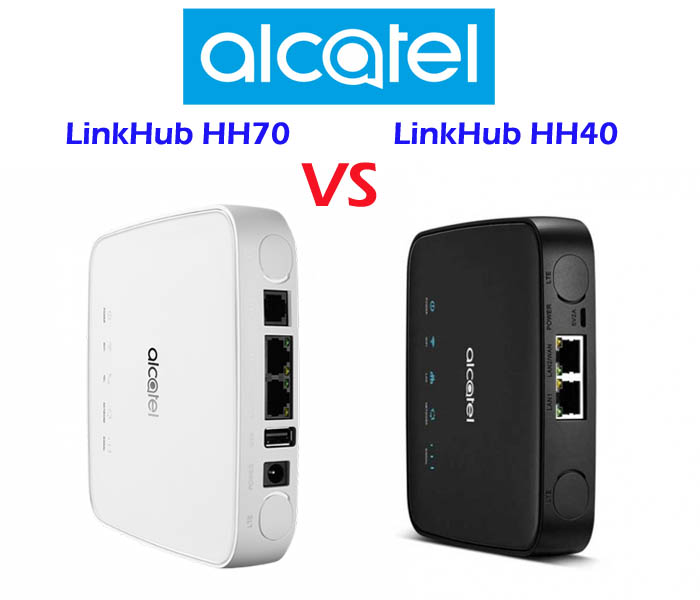
Since more and more 4G Mobile WiFi Hotspots are with Ethernet ports, the network equipment supplier Alcatel also presented a new 4G Mobile Hotspot with Ethernet port. The model number is Alcatel Linkhub HH40. It was available for some network providers in Europe, such as A1 Austria and re-named it as “A1 Net Cube 2”, which is following the first generation A1 Net Cube Plus B528. For carrier congstar in Germany, it got a new name as “Homespot WLAN Router“. Then what the new WLAN router could bring to us, let’s have a check the Alcatel linkhub HH40 Specifications and features.

Alcatel Linkhub HH40 Specs and Features
Manufacturer and model Alcatel Linkhub HH40
chipset Qualcomm MDM9207
LTE Category Cat. 4
Download rate 150Mbit/s
Upload rate 50 Mbit/s
Supported LTE bands 800, 900, 1800, 2100, 2600 MHz
Backwards compatible with UMTS, EDGE, GPRS
Support for LTE-Advanced No
MIMO Support Yes
Connection for external antenna: Yes, two SMA connectors(Buy Alcatel LinkHub HH40 Antenna)
Telephone
With integrated telephone system: Yes
Connection for ISDN phones: No
Connection for analogue phones: No
DECT: No
integrated answering machine: No
Network | LAN & WLAN
LAN ports: 2x 100 Mbit LAN (RJ45)(One for LAN/WAN)
WLAN standards: WLAN 802.11 b/g/n
5 GHz WLAN support: No
encryption: WEP, WPA, WPA2
WLAN hotspot function: Yes
Others
Battery pack No battery available
Dimension and Weight 134 x 134 x 31.5 mm / 310g
USB unavailable
Memory card expansion No
Release 10/1/17
Price: 169.00USD
Available at: » www.4gltemall.com (unlocked version)
File download
Manual as PDF Alcatel Linkhub HH40 User manual
detailed data sheet: » Alcatel Linkhub HH40 Datasheet

Alcatel Linkhub HH40 – Fast Speed Connection but not the best

Alcatel Linkhub HH40 could support LTE category 4, which means it could achieve maximum 150 Mbit/s in the download and up to 50 Mbit/s in the upload. For most applications, this speed should be enough, but in fact, this router is even closer to the data highway in reality. Neither the LAN port nor the WLAN interface of the Alcatel Linkhub HH40 actually provides the 150 Mbit/s. However, there are many LTE-A pro mobile routers with Ethernet port, which could support peak download speed to 1Gigabit/s, such as Netgear Nighthawk M1 or Huawei E5788u-96a. So Alcatel Linkhub HH40 is just decent WiFi router for normal daily use.


Alcatel states that up to 32 users can contact the HH40 router simultaneously, but then the bandwidth would (at best) be around 3.1 Mbps. After all, an optimal reception is ensured because the network device uses the multi-antenna technology 2 × 2 MIMO. In addition, external LTE antennas can be connected via the two SMA connectors. In terms of frequency diversity, Alcatel linkhub HH40 could support all the popular LTE frequency bands in Europe, including B1, B3, B7, B8, B20. The unlocked Linkhub HH40 could work with all the network carriers in Europe without any limit.


Alcatel Linkhub HH40 – Easy to take but no battery pack

If you want to take the 4G lte broadband router with you on the road, for example, to be able to control the Internet with your laptop while on the move, you will not need much space with this Linkhub HH40 router. The three centimeters thick and the 13 centimeters dimensions ensure high mobility. And the low weight of only 310 grams makes it easy to take in bag or pocket. What Useful are the indicators for connection status and reception.


However, unlike other Alcatel 4G mobile WiFi routers, there is no battery pack with the device, the power of the Linkhub HH40 is supplied via a standard micro USB connection. Therefore, if you want to use the Linkhub on the move, you’d better to take a mobile power bank for it. It’s really a negative feature: The manufacturer has not thought of a battery.

Other features of the Alcatel Linkhub HH40

The Alcatel Linkhub HH40 can be configured not only via a web interface from the computer and mobile phone, but also by means of an app. For these, a smartphone with an operating system from iOS 5.0 or Android 4.2 is required. What has to mention with such a compact LTE router is the RJ45 connection. One RJ45 is for both LAN/WAN and the other is for LAN. A convenient convenience feature is the WPS button, so the annoying entry of the network key is not necessary when connecting a device for the first time.


Actually, here now there are many advanced Alcatel LTE Routers supports high-level LTE technologies. If you don’t have great demand for internet speed, Alcatel Linkhub HH40 is good to consider.

Huawei 5G Router

More and more countries are starting the 5G trial since 2018, even though 5G commercial networks have not yet been launched, many people are keen to know the latest new 5G routers and some network carriers want to get 5G routers for network test purpose. Huawei, as the 5G standard maker and the top network equipment vendor for worldwide network providers and end-users, is, of course, dominating the 5G trend. Based on the success on 4G Router, Huawei 5G router is also attracting many potential users.

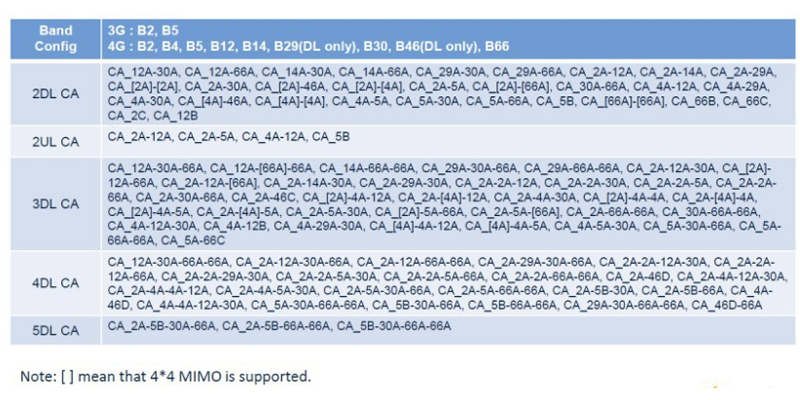
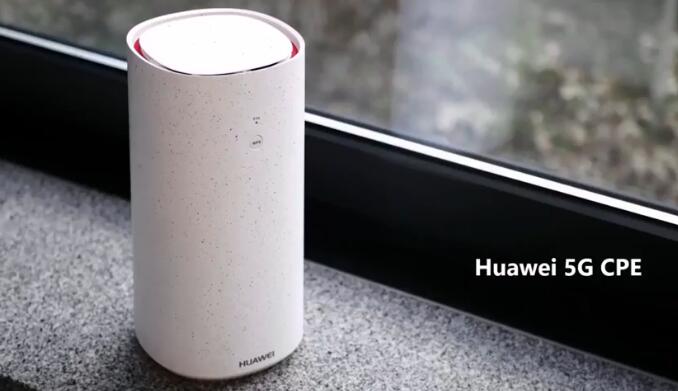
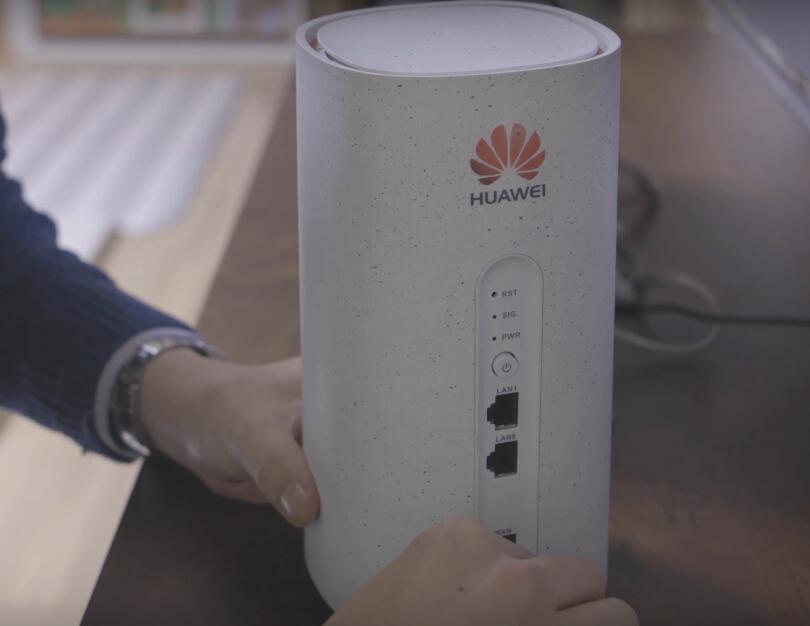
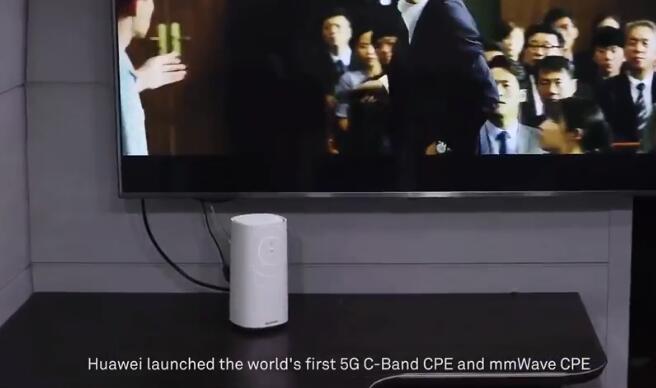
Huawei had presented the world’s first 5G chipset to the public since the beginning of 2018 at MWC and based on this 5G platform, Huawei released two new 5G CPEs: Huawei 5G CPE mmWave and 5G CPE sub6GHz. Just like the Huawei 4G Routers, the two Huawei 5G Routers also support difference 5G frequency bands. Actually, Huawei also released a new Huawei 5G Router named Huawei B818 on official site. Here now we can’t tell which one is the best 5G router because the details specifications about the three Huawei 5G routers are very limited. We list the general specs of the three Huawei 5G routers as below.

  1. Huawei B818 5G Router

* LTE Category 19 CPE

* Chipset: Hisilicon Balong 765

* LTE Download Speed to 2Gbit/s

* Supports all sub-6 GHz

* 8 x 8 MIMO


Check more details about Huawei B818 Router 5G: https://www.4gltemall.com/huawei-b818-lte-cat19-gigabit-cpe.html


  1. Huawei 5G Router mmWave

* World’s first 3GPP Commercial CPE

* Chipset: Huawei Balong 5G01

* Peak rate 2Gbps

* Supports mmWave multi-frequency

* 4G/5G dual connectivity

* Supports Power Over Ethernet(POE)

Check more details about Huawei 5G Router mmWave: https://www.4gltemall.com/huawei-5g-cpe-mmwave.html


  1. Huawei 5G Router sub6GHz

* World’s first 3GPP Commercial CPE

* Peak rate 2Gbps

* Supports Sub6GHz multi-frequency

* 4G/5G Dual connectivity

Check more details about Huawei Router 5G sub6GHz: https://www.4gltemall.com/huawei-5g-cpe-sub6ghz.html


We suppose there will be more Huawei 5G routers available as time goes and we will keep updating the list for your reference about the latest 5G routers and 5G development news.

Huawei E5885 User Manual

This blog is about the Huawei E5885 user manual. The Huawei E5885Ls-93a user manual guides users to know the Huawei E5885. And the Huawei E5885 manual tells how to use and setup Huawei E5885 mobile hotspot.


Huawei E5885 Appearance

  1. WPS button: To connect a WPS-enabled device to your HUAWEI Mobile WiFi Pro2 using the WPS button. When WPS is enabled, press and hold the button for more than five seconds to set up a WPS connection.
  2. Screen
  3. Slot cover
  4. Power button: Press and hold to turn your HUAWEI Mobile WiFi Pro2 on or off.
  5. Lanyard hole
  6. Output charging port
  7. Micro USB port
  8. Ethernet port
  9. NFC sensor: Use NFC function to establish a Wi-Fi® connection.
  10. Reset button: Press and hold to restart your HUAWEI Mobile WiFi Pro2 and restore it to its factory settings.


Note: If you forget the username, password or SSID for your HUAWEI Mobile WiFi Pro2, try restoring the device to its factory settings.


Huawei E5885 SIM card and SD card Installation


Network connection

You can view the current SSID (Wi-Fi network name) and Wi-Fi network key on the screen.

We strongly recommend that you change the default SSID and Wi-Fi network key to keep your data secure.


HUAWEI Mobile WiFi Pro2 as a router


Use a network cable to reduce mobile data usage.

HUAWEI HiLink app


Download the HUAWEI HiLink app to manage your HUAWEI Mobile WiFi Pro2 more easily.

* Change the SSID and Wi-Fi network key.

* Check data traffic and SMS messages.

* Check roaming state and signal strength.


Note:

* You can also manage your HUAWEI Mobile WiFi Pro2 through the web interface at http://192.168.8.1. The default username and password is admin.

* Click Help in the upper right corner of the web interface to learn more about your HUAWEI Mobile WiFi Pro2.


Connect to Huawei E5885 Wi-Fi via NFC(optional)

If you are using a device (such as an Android phone or tablet) with NFC functionality, you can connect automatically to Wi-Fi by simply touching your device against the NFC sensor on the HUAWEI Mobile WiFi Pro2.


Before starting, make sure that your phone or tablet is unlocked and that NFC is enabled. Ensure that your HUAWEI Mobile WiFi Pro2 is powered on and that you have the HUAWEI HiLink app installed on your device.


  1. Touch your device against the NFC sensor on the HUAWEI Mobile WiFi Pro2, as shown in the following figure.

  1. When detection is successful, the HUAWEI HiLink app will automatically open on your device and you will be connected to Wi-Fi. The Wi-Fi icon should be visible in the status bar of your device if connection has succeeded.


Note:

* This feature is not available for iOS devices.

* If HUAWEI HiLink is not installed on your device, touching the device against the NFC sensor on the HUAWEI Mobile WiFi Pro2 will automatically bring up the Choose an action screen. From here, select New tag scanned (the name of this option may vary by device) and follow the link to download and install the HUAWEI HiLink app.

* You can also download and install HUAWEI HiLink by scanning the QR code in the HUAWEI HiLink app section of this manual. Alternatively, search for and download HUAWEI HiLink in Google Play or the HUAWEI App Center.


Huawei E5885 Wi-Fi extender (optional)

The Wi-Fi extender feature increases Wi-Fi coverage and connects to Wi-Fi networks where available to reduce mobile data usage.

On the HUAWEI HiLink app, enable the Wi-Fi extender function, and connect HUAWEI Mobile WiFi Pro2 to a Wi-Fi network.


Huawei E5885 Charging other devices


You can charge your phone or Bluetooth headset with the HUAWEI Mobile WiFi Pro2 using a charging strap or charging cable.


Method 1: Charging other devices using the charging strap

  1. Please open the charging strap as indicated in the figure.

Note: The charging strap is a standard accessory.


  1. Insert the charging strap in the port shown in the figure.

Method 2: Charging other devices using a charging cable

Note: Your HUAWEI Mobile WiFi Pro2 will not be able to charge other devices when it has a low battery or is overheating.


Huawei E5885 Power Charging

Please only use compatible chargers provided by a designated manufacturer.


Note: The charger is an optional accessory. To buy a charger, please contact an authorized retailer.


User Tips for Huawei Mobile WiFi Pro2:


  1. Why isn’t my HUAWEI Mobile WiFi Pro2 responding?

> Try restarting the device. If that doesn’t work, restore the device to its factory settings.


  1. Why can’t I connect to my HUAWEI Mobile WiFi Pro2 sometimes?

> To save power, your HUAWEI Mobile WiFi Pro2’s Wi-Fi auto off feature is designed to turn off Wi-Fi when there haven’t been connections for a while. You can press the POWER button to turn on Wi-Fi again. Alternatively, you can disable this feature, although this might impact battery life. Log in to the web interface and disable the Wi-Fi auto off feature.


  1. Why won’t my HUAWEI Mobile WiFi Pro2 connect to a network even though all the settings are correct?

> The PIN verification feature might be enabled. Launch HUAWEI HiLink and enter the correct PIN.

> You can disable this feature if you find entering the PIN regularly inconvenient.

> From the HUAWEI HiLink app, select Settings and then disable the PIN verification feature.


  1. Why can’t I access the web interface at 192.168.8.1?

> This is likely due to an IP address conflict when the HUAWEI Mobile WiFi Pro2 assigns itself a new IP address. Please try 192.168.9.1 in this case. If your HUAWEI Mobile WiFi Pro2 has an LCD screen, the new IP address of your web interface will be displayed.


  1. Why won’t my HUAWEI Mobile WiFi Pro2 power on?

> Your battery is probably out of power.

> Charge your HUAWEI Mobile WiFi Pro2 for a while and power it back on.


  1. Why did my HUAWEI Mobile WiFi Pro2 power off all of a sudden?

> Your HUAWEI Mobile WiFi Pro2 may overheat when you use it continuously over a long period of time, and thereby trigger its automated protection system. Wi-Fi will be turned off and your HUAWEI Mobile WiFi Pro2 will power off if this occurs.

> Please ensure the device is properly ventilated and cooled before you power it on again.


Check more about Huawei E5885 features here: https://www.4gltemall.com/huawei-mobile-wifi-pro-2.html

Five LTE Advanced Pro Modules to Recommend

With the development of LTE wireless technologies, more and more networks are evolving from LTE advanced to LTE advanced Pro. LTE Advanced Pro (LTE-A Pro, also known as 4.5G, 4.5G Pro, 4.9G, Pre-5G, 5G Project, and so on) is a marker of the 3GPP release 13 and 14, which is a natural evolution of Long Term Evolution (LTE) with speed up to Gbit/s level, which incorporated numerous new technologies that would be used in 5G standard, including 256QAM, Massive MIMO, LTE-Unlicensed, LTE IoT, and others to progressively evolve existing networks into 5G standard.

LTE-A Pro aims to significantly increase the data speeds and bandwidth available for mobile communications. It will also bring a much wider range of connected devices and platforms under a single standard. LTE-A Pro seeks to improve and optimize the capacity, performance, functionality and efficiency of LTE-A, as well as to further reduce latency, to provide a better user experience. It will also enhance the LTE platform for the delivery of new services to new markets as we move towards IoT with 5G.

The key attributes that will define LTE-Advanced Pro are:

> Data speeds in excess of 3Gbps (LTE-A: 1Gbps)
> 640MHz of carrier bandwidth (LTE-A: 100MHz)
> Latency: 2ms (LTE-A: 10ms)


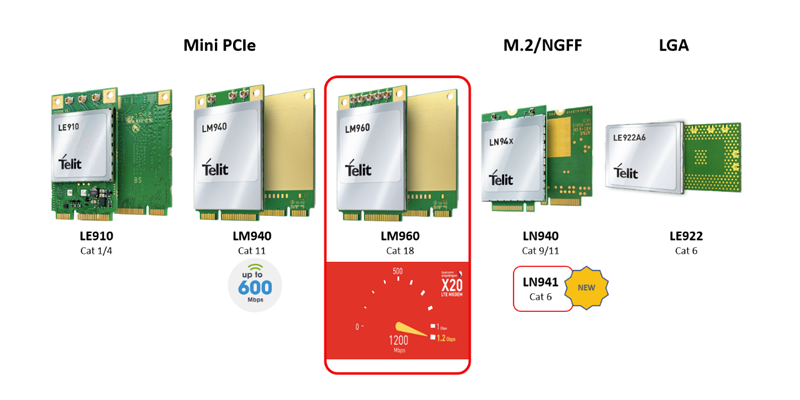
Since very few LTE Advanced pro devices are available in the market, the LTE vendors are already presenting their LTE advanced Pro modules to the public and below the five LTE advanced Pro modules are recommended if your terminals are demanding high-speed internet access:


  1. Telit LM960 (LTE Cat.18)

Specs Highlights:

* World’s first mPCIe form factor to support LTE cat.18

* Support global 23 LTE Frequency bands

* LTE peak download speed up to 1Gbps

* Dual SIM Single Standby

* Full GNSS support: GPS, GLONASS, Galileo, Beidou

* Chipset: Qualcomm Snapdragon X20 modem

* Linux and Windows driver support

* 4 x 4 MIMO and 256 QAM

* 5x Carrier Aggregation for increased data rates

Check more details about Telit LM960 Specs, price, drivers, and buy Telit LM960 module here: https://www.4gltemall.com/telit-lm960-4g-lte-cat18-pcie-module.html


  1. Sierra Wireless AirPrime EM7565 (LTE Cat.12)

Specs Highlights:

* LTE Advanced Pro Cat.12 Module

* Chipset/Processor: Qualcomm MDM9250

* DL to 600Mbps/UL to 150Mbps

* Supporting 24 worldwide LTE bands, including LTE-LAA and CBRS

* Satellite Systems: Galileo, Glonass, GPS, Beidou

* Planned Carrier AT&T, DoCoMo, Telstra, Verizon, Vodafone

* Regulatory: CE, FCC, GCF, IC, NCC, PTCRB

Check more details about Sierra AirPrime EM7565 Specs, price, drivers, and buy AirPrime EM7565 module here: https://www.4gltemall.com/sierra-wireless-airprime-em7565.html


  1. Sierra Wireless AirPrime EM7511 (LTE Cat.12)

Specs Highlights:

* Very similar to AirPrime EM7565

* LTE Advanced Pro Cat.12 Module

* Form factor: M.2

* Chipset/Platform: Qualcomm

* DL to 600Mbps/UL to 150Mbps

* Supporting 24 worldwide LTE bands, including LTE-LAA and CBRS

* Control Options: APIs, AT Commands

* Firmware over-the-air (FOTA)

* GPS, GLONASS, BeiDou, and Galileo satellite systems supported

Check more details about Sierra AirPrime EM7511 Specs, price, drivers, and buy AirPrime EM7511 module here: https://www.4gltemall.com/sierra-wireless-airprime-em7511.html


  1. Telit LM940 (LTE Cat.11)

Specs Highlights:

* Category: LTE Cat.11 Module

* Form Factor: PCI Express Mini Card Type (mPCIe)

* Chipset: Qualcomm MDM9240

* LTE data rates: DL 600Mbps(w/3x CA DL, 256QAM) and UL 75Mbps

* Full GNSS support: GPS, GLONASS, Galileo, Beidou

* Carrier Approvals: AT&T, Sprint, Verizon

Check more details about Telit LM940 Specs, price, drivers, and buy Telit LM940 module here: https://www.4gltemall.com/telit-lm940-lte-cat-11-gps-pcie-module.html


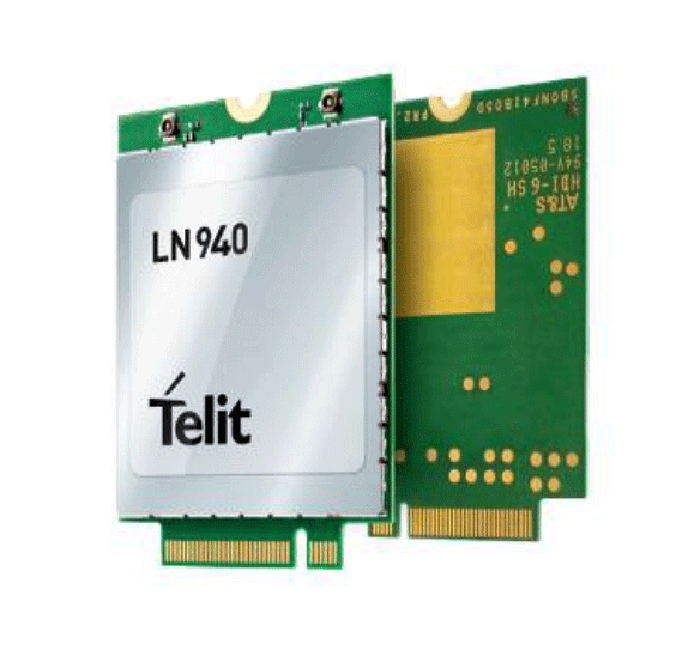
  1. Telit LN940 (LTE Cat.11 and Cat.9)

Specs Highlights:

* Two variant models: Telit LN940A9 and LN940A11

* 42mm M.2 (NGFF) single-sided data card

* LTE Category 11 LTE DL 600Mbps UL50Mbps

* LTE Category 9 LTE DL 450Mbps UL50Mbps

* HSPA+ Rel. 8: DL/UL up to 42/11.5 Mbps

* Quad-constellation integrated GNSS

* Linux and Windows driver support

* Carrier Aggregation, 2 x 2 MIMO and 256 QAM

Check more details about Telit LN940 Specs, price, drivers, and buy Telit LN940 module here:

https://www.4gltemall.com/telit-ln940-lte-cat9-11-m-2-data-card.html

Telekom Speedbox LTE IV (Huawei B618s-22d) Review

Last year, the Germany network provider Telekom puts its logo on a Huawei WiFi router 4G again and assigned the new LTE router as the name of Speedbox LTE IV. If you are familiar with Huawei LTE router, you can immediately recognize the Speedbox LTE IV is from original Huawei B618s-22d router. On the basic hardware of the Huawei B618 Router, Telekom may customize some firmware of the router, but the highlight features are still maintained as below


Features and characteristics of Speedbox LTE IV (Huawei B618s-22d)
Manufacturer and model number Huawei B618s-22d / Telekom Speedbox LTE IV
chipset Balong 75
LTE Category LTE Cat. 11
Download rate Up to 600 Mbps
Upload rate Up to 50 Mbps
Supported LTE bands 800, 900, 1800, 2100, 2600 MHz
Backwards compatible with HSPA+ (42.2 Mbps), UMTS, Edge, GPRS
Support of LTE-Advanced Yes
MIMO Support Yes
Connection for external antenna Yes, two TS-9 connectors (Buy Speedbox LTE IV Antenna)
Network | LAN & WLAN
LAN ports: 2
WLAN standards: WLAN 802.11 a/b/g/n/ac
5 GHz WLAN support: Yes
Encryption: WEP, WPA, WPA2, WPS
WLAN hotspot function: Yes
Others
Battery pack no battery available
Dimension 95 x 95 x 210 mm
USB two USB ports
Memory card expansion No
Release November 2017
Price: 449USD (as of April 2018)
available at: » www.4gltemall.com
Docs download
Datasheet: » Download Huawei B618 Datasheet (PDF, 190 KB)
Detailed manual: Download Huawei B618 Manual (PDF)


Huawei knows a lot about the network business, so it’s no wonder that local operators often rely on solutions from this company. Based on the LTE category 11, the redesigned router B618s-22d is particularly future-proof. Up to 600 Mbit/s can be achieved in the download, in the upload a maximum of 50 Mbit/s is possible. To ensure good 4G reception, Huawei has integrated the multi-antenna technology 4 × 4 MIMO. However, if the LTE network is not available, the data can also be transmitted via HSPA with a peak bandwidth of 42.2 Mbit/s. Backward compatibility with 2G radio (GSM / GPRS) finally provides the last straw in mobile communications. Regarding the LTE frequency bands, the Speedbox LTE IV covers all relevant frequency bands on B1, B3, B7, B8, B20.

Interfaces of the Speedbox LTE IV

A good LTE reception at the router is of course only half the task, the data packets must also be forwarded accordingly quickly and efficiently to the terminals. With the Wifi connection 802.11 ac, smartphones, tablets and notebooks can benefit from a fast connection. Thanks to dual-band (2.4 GHz and 5 GHz), up to 1.9 Gbit/s are possible. Alternatively, an Ethernet connection is available via two Gigabit-capable LAN ports. In terms of USB, the Telekom has upgraded with his variant. The original model “Huawei B618s-22d” comes only with a USB port and high quality telephone is also possible with this router, however, the Speedbox LTE IV gets with only two LAN ports.  A telephone system does not exist; but the Huawei B618 router is originally VoLTE- compatible and can handle VoIP. The Telekom Speedbox LTE IV has cut the telephone function.


Special features of the Speedbox LTE IV

If the reception is not sufficient, the buyer can use an external antenna solution.  The SIM card slot is a bit out of date and comes in the micro-SIM version. If necessary, an adapter must be used. An integrated firewall provides the necessary security, and the router can be configured via a web interface.


The package content consists of a plug-in power supply, a LAN cable and a quick start guide. The maximum power consumption of the Speedbox LTE IV is 24 watts. The price of Speedbox LTE IV is not cheap now. If you want to get an unlocked device, we suggest you take the original Huawei B618s-22d with the WAN & LAN ports, and the USB & VoIP telephone ports.