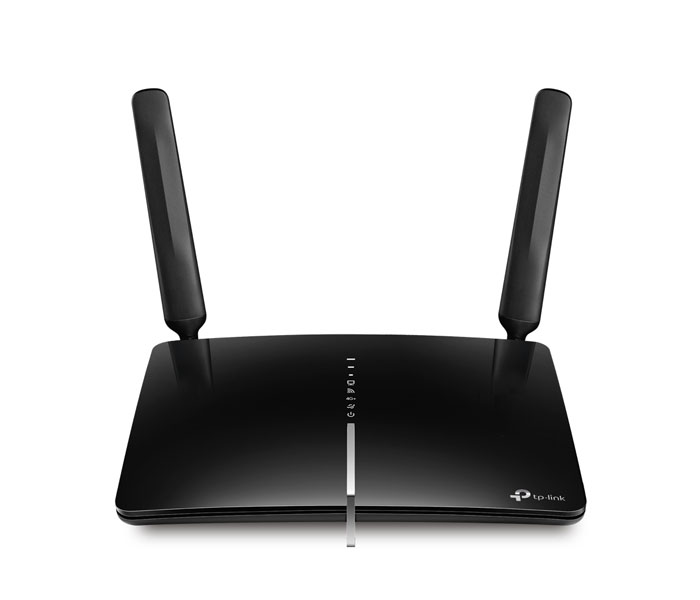
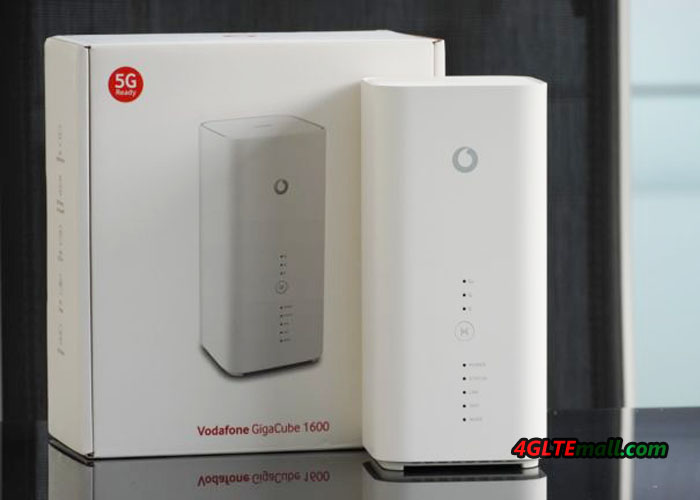
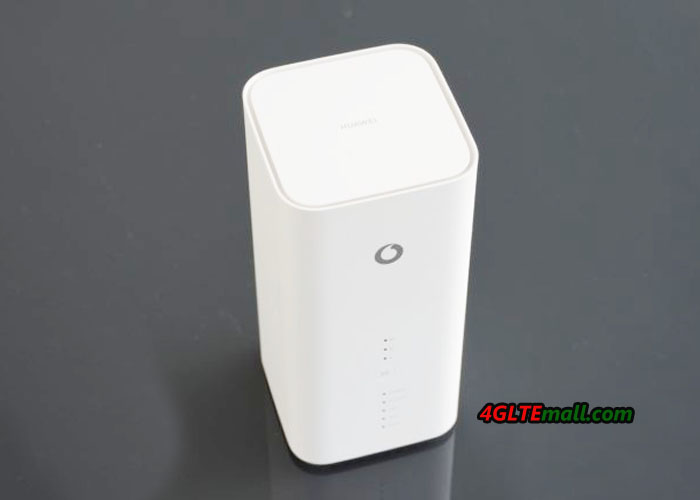
Vodafone Gigacube CAT19 is a new 4G LTE WiFi router offered since March 2019. The device is manufactured by Huawei and the model name is B818-260. The B818 is by far the newest and fastest LTE router in the Huawei product range, with LTE Cat19 delivering speeds of up to 1.6 gigabits per second. Vodafone sells the router as a Gigacube CAT19 as the successor to the previous “small” Gigacube Huawei B528 and thus offers customers a very powerful alternative to choose from. If you want to know the performance of Huawei B818, you may continue reading.
Huawei B818 – First Gigabit LTE router
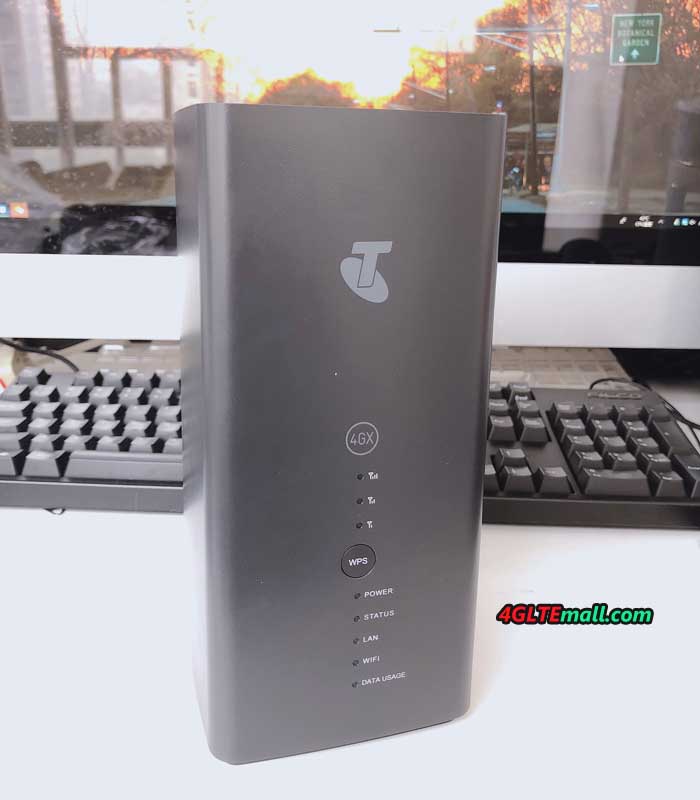
The Huawei B818 is Huawei’s first stationary LTE router capable of achieving speeds well above 1 Gbps in the LTE network. The device is positioned as a successor to the Huawei B618 and offers not only a very similar design but also comparable good equipment.
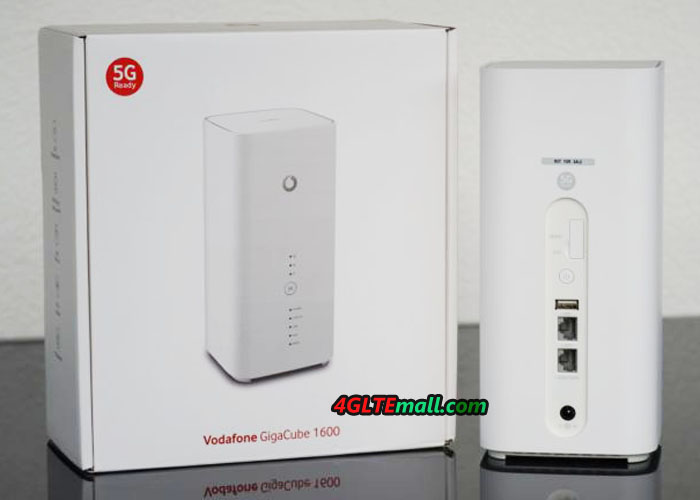
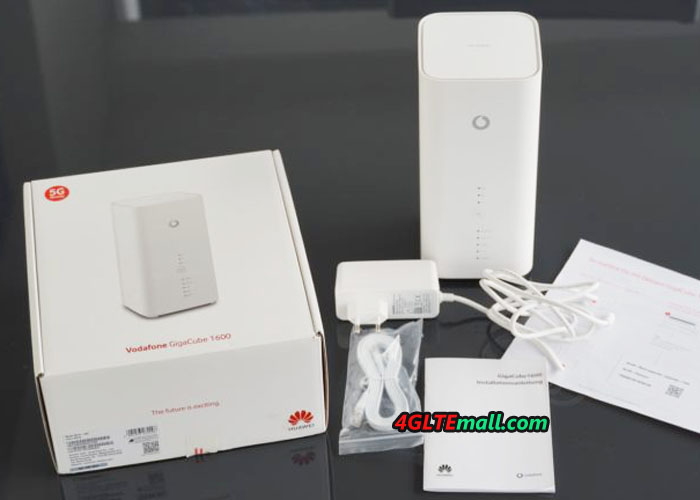
In addition to the Huawei B818-260 router, there is also a power adapter and a flat LAN cable. There is also a printed German-language manual and a quick-start sheet. The package contents refer to the version as Gigacube CAT19, other variants of the B818 may be delivered with a modified accessory. Vodafone is currently the only provider in Europe to offer the Huawei B818.
Huawei B818 Interfaces
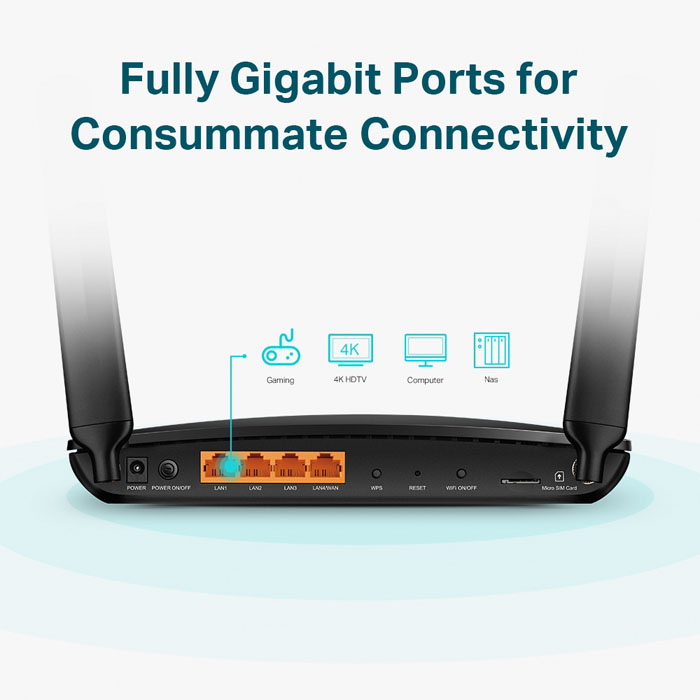
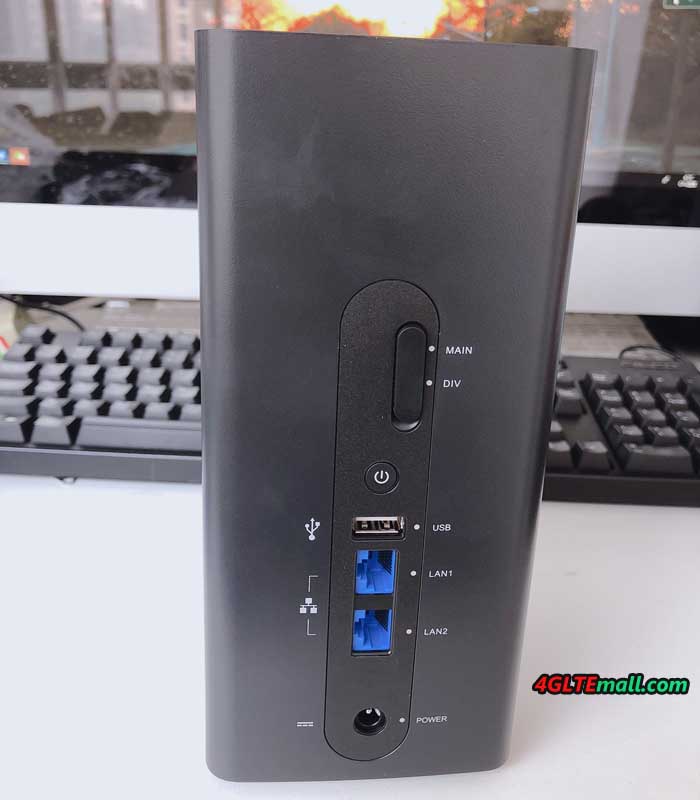
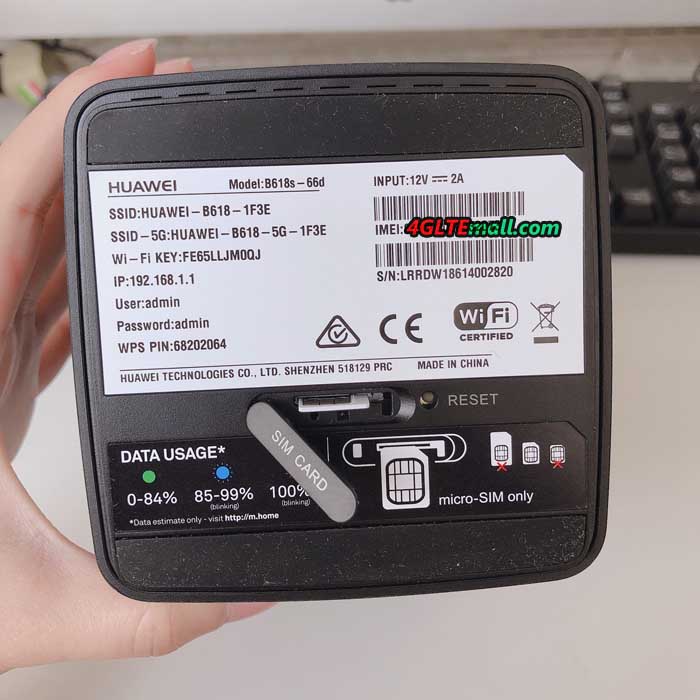
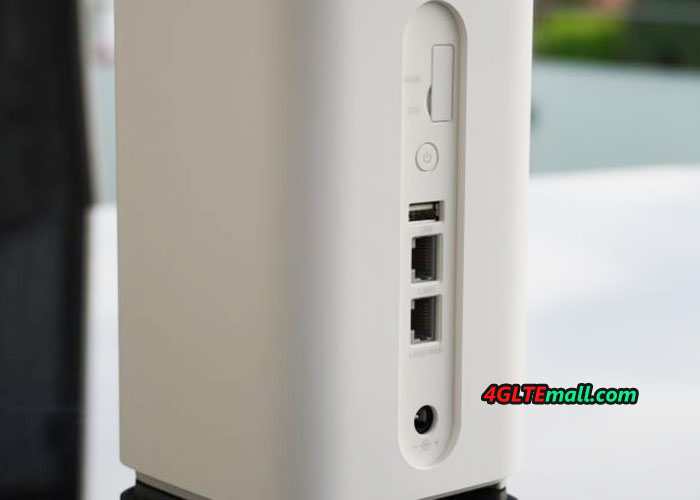
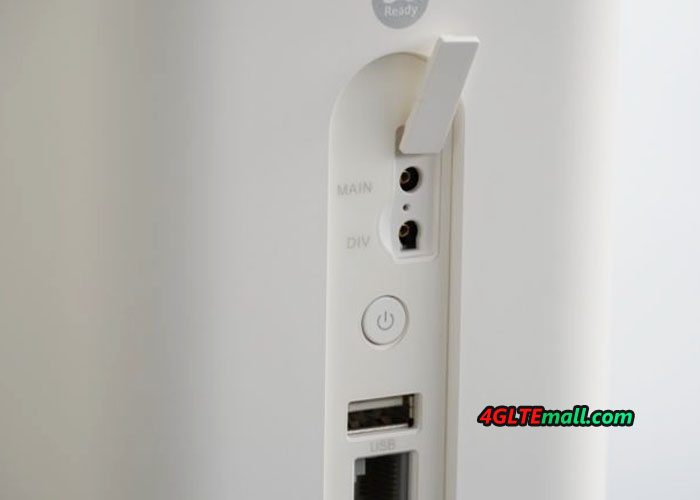
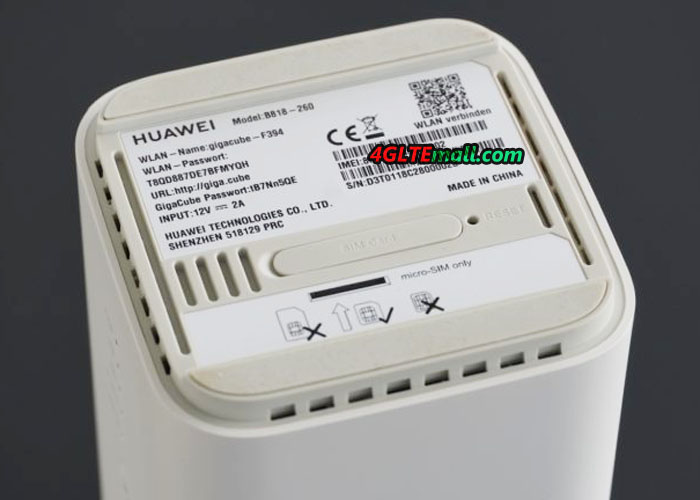
The Huawei B818 has a slot for a Micro-SIM card at the bottom. All other connections are located on the back. There you will find the connection for the power supply and two RJ45 Gigabit LAN ports. One of these LAN ports can also be used as a WAN connection, so that one does not necessarily have to rely on the wireless modem integrated in the router. Furthermore, there is a USB 2.0 port, over this storage media can be shared in the network. Also two connections for an external antenna are present.
Huawei B818 Specifications
The Huawei B818-260 LTE Router supports 4 × 4 MIMO antenna technology as well as carrier aggregation (channel bundling). The following LTE frequency bands are available: B1, B3, B7, B8, B20, B28, B32, B38, B42. In the downlink, the maximum theoretical data rate could reach 1.6 GBit/s and up to 150 MBit/s in the uplink is possible.
In practice, the speeds were rarely over 300 MBit/s. Vodafone theoretically promises up to 500 MBit/s in the Gigacube tariff, but many sites offer only lower data rates. Nevertheless, the B818 was often slightly faster than other devices in the test, especially when several frequency ranges could be bundled by means of carrier aggregation. The latencies (ping) were usually between 20 and 25 milliseconds in the test.
Huawei B818 Test
The Huawei B818 comes with built-in cellular antennas in the device. These offer a very good reception in the LTE network, especially in comparison with many smartphones. Even with poor reception, fast speeds are still achievable. For example, in the test, a stable connection could still be established in a basement room, even though the smartphones in the room already showed no reception.
The Huawei B818 allows the connection of up to two external antennas or a MIMO antenna. For this purpose, two TS-9 connectors are available on the back. If the external antenna is not detected automatically by the router, then you can manually switch to the operation with an external antenna in the web interface.
The WLAN module of the Huawei B818 transmits by default in dual-band mode to 2.4 and 5 gigahertz. Up to 32 devices can be supported with WLAN at the same time. The maximum speed was tested by using 3 × 3 MIMO antenna technology at 1300 MBit/s, which is also the highest data rate supported by the WLAN module. The speed is at a high level compared to other Huawei 4G LTE Wireless router models. The WLAN range was also convincing in the test, a large apartment or a small family home can be supplied without additional repeaters.
The Huawei B818 provides a separate guest Wi-Fi network upon request. This can be equipped with a separate password. Unfortunately there is no timer function for the WLAN module.
Huawei B818 Software: Web Interface & App
The operation and configuration of the Huawei B818 or Gigacube CAT19 takes place either via web interface in the browser or via an app. The web interface is designed in red Vodafone design, the app comes in the original Huawei design therefore. The web interface offers significantly more options than the app, so there about the desired network technology (eg LTE-only) can be set. Overall, the web interface has left a good impression in the test.
Conclusion: Huawei B818 / Vodafone Gigacube CAT19
The Huawei B818, or Vodafone Gigacube CAT19, left a very good impression in the test. In particular, the new LTE wireless router was convincing, this offers above-average speeds and is extremely future-proof. Currently, the speed advantage of the Huawei B818 is still manageable compared to many other LTE router models. The operation and configuration was very easy in the test and if necessary, any other SIM card can be used in addition to the Vodafone SIM card.
The Vodafone Gigacube CAT19 or Huawei B818 is worthwhile for anyone who would like to have a particularly good LTE modem and would like to spend a little more. Even the Huawei B818 can provide high LTE and WLAN speeds for daily use, but probably only for the fewest users. Currently, a cheaper device such as the Vodafone Gigacube CAT6 (Huawei B528) is quite sufficient.