How to set up your Vodafone GigaCube CAT19?

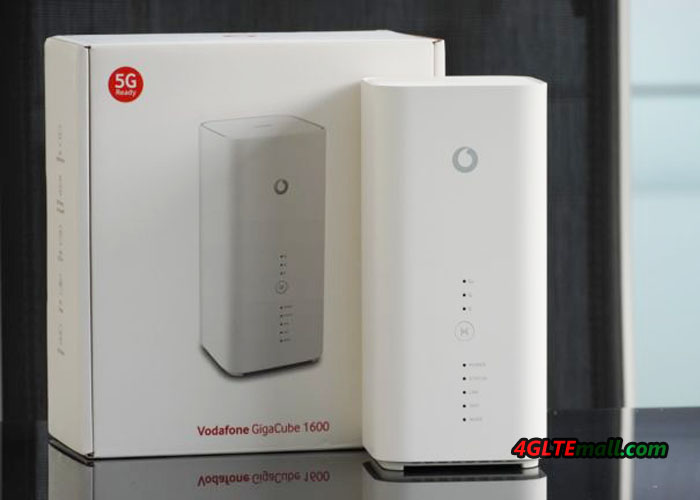
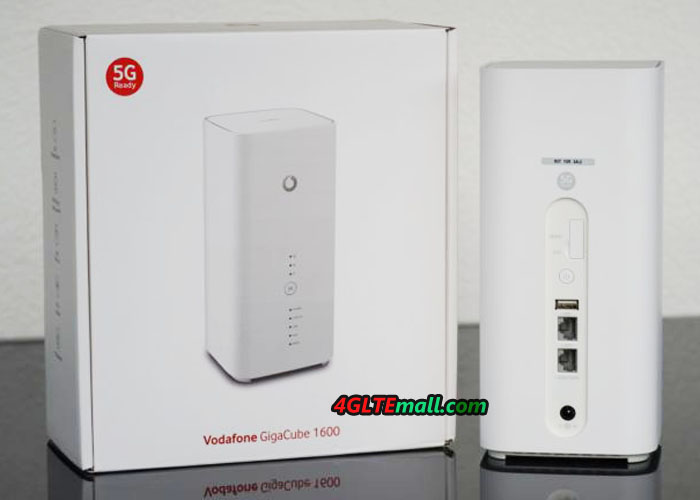
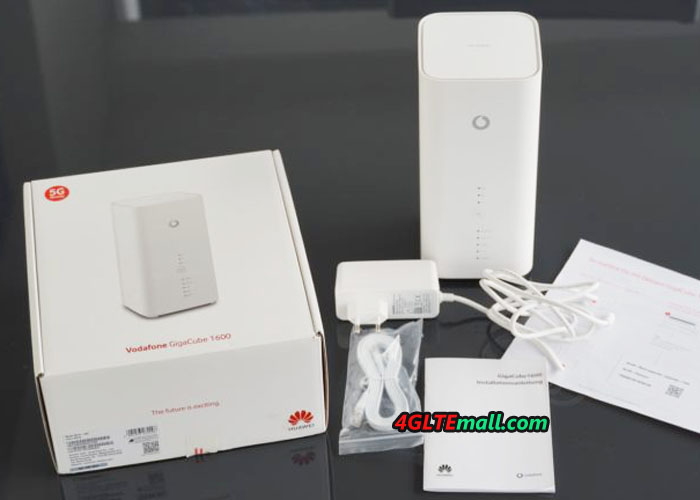
Before you start, check the contents of the delivered GigaCube. The package includes the Vodafone GigaCube CAT19, the power supply, LAN cable and installation instructions.

First, put Vodafone GigaCube CAT19 into operation

  1. Your micro SIM card is inserted.
  2. Plug in the network cable or connect your device to the WLAN.

Good to know: If you use WLAN, enter the WLAN password (network security key).
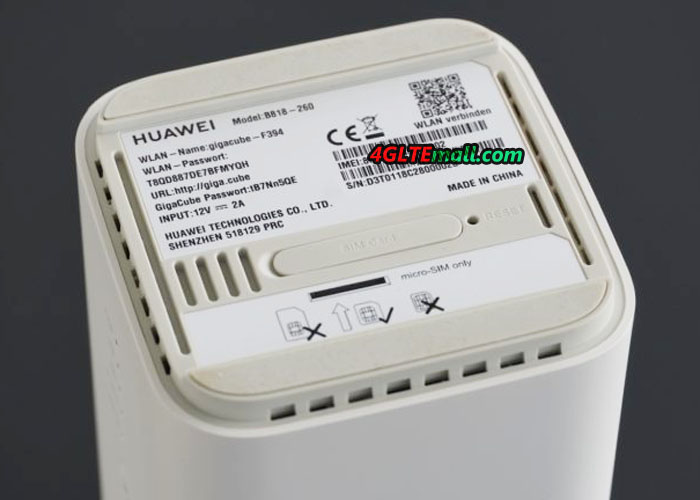
You can find it on the sticker at the bottom of the GigaCube. You will also find a sticker in the packaging.
Note: The GigaCube must be connected to the mobile Internet.
It’s even easier now with a QR code scanner. Scan the QR code and connect directly to the GigaCube via Wi-Fi.
Tip: Use the Huawei SmartHome app. The QR code scanner is already there.
Read more under How to manage your GigaCube CAT19 via the Huawei SmartHome app.

  1. Enter http: //giga.cubeor 168.8.1 in the address field of the internet browser.
  2. Enterthe GigaCube password (router login password). You can find it on the sticker at the bottom of the GigaCube.
  3. Click on Login.
  4. You will get an info about the automatic update.
  5. We recommend activating the auto-update. Click on Activated.
  6. Set up your Wi-Fi name (SSID) and your Wi-Fi password.
  7. Click Next.
  8. Enter a new login password for your router for security.
  9. Click Finish.
  10. Now the GigaCube web interface opens.


Click to check more about Vodafone GigaCube Cat19 FAQs and User Manual

Manage Vodafone GigaCube CAT19 via the HUAWEI SmartHome App

  1. Download the Huawei SmartHome App from Google Play or the App Store .
  2. Install the Huawei SmartHome app on your smartphone or tablet.
  3. Turn on the GigaCube CAT19.
  4. Open the Huawei SmartHome app.
  5. Agree to the user agreement.
  6. Swipe with your finger 3 times to the left across the display. Press Next.
  7. Select Connect.
  8. Select QR Code Scan.
  9. Scan the QR code from the bottom of your GigaCube CAT19 or the installation guide.
  10. The devices now connect via Wi-Fi.
  11. Tip in the Huawei SmartHome app to sign up.
  12. Enter the login password. Good to know: You can find it on the bottom of the GigaCube.
  13. Change to security Your login password to your own password. So you are even safer.
  14. Open under ToolsSettings > Account Settings > Change login password.
  15. Enter the current password.
  16. Enter a new password.
  17. Confirm the new password.
  18. Tip on the checkmark in the upper right corner of the display.
  19. Dial LoginEnter your new login password.
  20. You are now connected to your device and your GigaCube CAT19 via the Huawei SmartHome app.
    Manage via the app eg your Wi-Fi settings.


Click to check more about Vodafone GigaCube Cat19 FAQs and User Manual

How to insert my SIM card into the Vodafone GigaCube CAT19?

  1. Open the micro SIM card cover on the bottom of the Vodafone GigaCube CAT19.
  2. Carefully insert the micro SIM card into the card slot until you hear a click.
    Your micro SIM card is already activated. You do not need a PIN when starting the GigaCube.
  3. Then shoot the micro SIM card cover.
  4. Connect the power supply to the router.

Good to know: If your Vodafone router is turned on, you must not insert or remove the micro SIM card. This may affect performance or damage the micro SIM card.

Click to check more about Vodafone GigaCube Cat19 FAQs and User Manual

Vodafone Gigacube Cat19 LED indicators lights and flashes means

LED indicator lights LED indicator flashes
Signal * No LED lights up: no mobile connection

* 1 green LED lights up: weak mobile radio reception

* 2 green LED lights: good mobile radio reception

* 3 green LED lights: very good mobile radio reception

LAN * No LED lightt: Ethernet cable not connected
* Green: Ethernet cable connected
Green: device connected, data transmission
Wireless Internet Access No LED is lit: 2.4 GHz and 5 GHz connections are closed * Green: WLAN switched on
* Fast Green: Connecting to 2.4 GHz or 5 GHz using WPS
Power * No LED lights up: GigaCube switched off
* Green: GigaCube switched on
Status * No LED is lit: connection to the data service is disconnected
* Green: data service is connected
Fast Green: Firmware Update
Mode LED Red = Error: This indicator is solid red when the CPE 1) maintains the offline mode while the temperature protection function is running or 2) the SIM card can not be identified. Or the PIN is not entered or the PIN check fails.
3) Or does not have access to the wireless network
Mode LED Cyan: 4G | LTE mode
Mode LED Blue: 3G mode
Mode LED Yellow: 2G mode


Check more about Vodafone GigaCube Cat19 FAQs and User Manual

FAQs for Vodafone GigaCube Cat19

Do the Vodafone GigaCube Cat19 support public IP addresses?

– No, public IP addresses are currently not supported. With the GigaCube rates, a private IP address is automatically stored.


Can I connect my landline telephone to the GigaCube?

– No, that will not work. The telephone connection on the GigaCube is shut down. There are no voice services for the GigaCube rate on the SIM card. You also can not use the GigaCube’s phone port with another SIM card with voice services.


Can I also use the GigaCube in my motorhome?

– Yes, with the Vodafone GigaCube you can even surf in the car, motorhome and camping.
You only need Vodafone mobile reception and a car converter for the cigarette lighter or 12V connection.
Or use the GigaCube external battery.


Does the GigaCube have voice recognition?

– No. You can only control and set it up via the GigaCube web interface.

More about this: How to set up your Vodafone Gigacube Cat19?

Quectel BC97 LTE Cat-NB2 and GSM Module Presented

The LTE cellular module manufacturer Quectel presented its first dual-mode LTE Cat-NB2 / GSM module at the end of February at the Mobile World Congress. The module is Quectel BC97, which can switch between NB-IoT and GSM technologies according to the coverage of one to the other of networks. At the MWC, the BC97 module sample displays compact dimensions of 23.6 x 19.9 x 2.2 mm and is compatible with the GSM/GPRS M95 variant, allowing a smooth migration from one design to the next NB-IoT while minimizing costs and development time, says the Taiwanese firm.


Presented in a surface mount box (LCC + LGA), the Quectel BC97 Module also supports voice communications on GSM and Bluetooth Low Energy technology. Equipped with a rich set of interfaces (USB, USIM, UART, A/D conversion, SPI, GPIO, MIC audio …) and compatible with the incremental update mechanism of low-level software DFOTA (Delta Firmware Over- The-Air), the Quectel LTE module targets diverse and varied applications such as shared bikes, smart parking, Bluetooth gateways, smart meters, smart city, asset tracking, smart home appliances, electronic devices carried on oneself, agricultural and environmental monitoring devices, etc.


The migration of GSM to LTE and 5G is irreversible,” said Doron Zhang, vice president of Quectel. But the GSM network, because of its extensive coverage, will remain operational for many years, especially in some developing countries. With its GSM fallback mode, the BC97 module can accommodate existing GSM networks and switch to NB-IoT in a progressive and transparent manner for the user as the NB-IoT infrastructure is unfolded. ”


It will be recalled that the NB-IoT version known as LTE Cat-NB2 refers to Release 14 of the 3GPP specifications, the first version of the NB-IoT (LTE Cat-NB1) having been detailed in Release 13.

Huawei B818(Vodafone GigaCube Cat19) LTE Router Review

In March 2019, Huawei supplied the new LTE WiFi Router B818 to Vodafone and the B818 router got a new name “Vodafone GigaCube Cat19” as the successor to the old model Vodafone GigaCube B528. Per the description from Vodafone, the Huawei B818 router could achieve download speeds up to 1.6Gigabits per second and upload speeds up to 150Mbps based on the LTE Category 19. It’s the fastest LTE router from Huawei now. For the Vodafone GigaCube Cat19, Huawei offer the model number B818-260.

HUAWEI B818 Router

Huawei B818 Specifications and Appearance

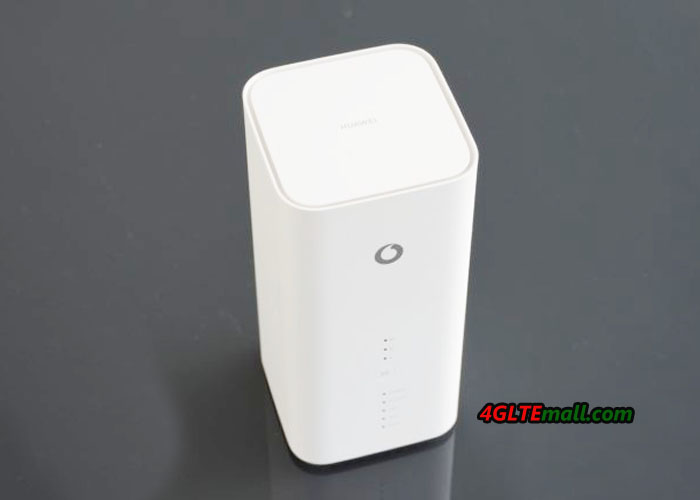
Although the Huawei B818 GigaCube Cat19 is the successor to the first generation GigaCube Huawei B528, the appearance of B818 looks more similar to the Huawei B618 Router. The Huawei B818 router is integrated with HiSilicon Balong V7R65 modem which supports LTE Cat19 with 256QAM, and up to 8 x 8 MIMO Antenna technology. As the sayings from Vodafone, the GigaCube Cat19 B818 supports speed up to 500Mbps, but theoretically with a suitably equipped LTE network, significantly higher speeds are possible.

HUAWEI B818 Router LED indicators

The Huawei B818 router WLAN works on both 2.4 GHz and 5 GHz and, in addition to the standard network, also enables a guest network. Thanks to 3 × 3 MIMO antenna technology, speeds of around 1.3 GBit/s can be reached via WLAN.


Huawei B818 Supported Frequency Bands

The Huawei B818-260 supports all the popular LTE frequency bands in Europe and Asia: Band 1, 3, 7, 8, 20, 28, 32, 38 and 42. For those who prefer to have it in MHz: 700, 800, 900, 1500, 1800, 2100 and 2600 MHz are supported for FDD-LTE, 2600 and 3500 MHz for TDD-LTE. The Huawei B818 is thus very well prepared for the future!

HUAWEI B818 Gigabit Ports

Huawei B818 Interfaces

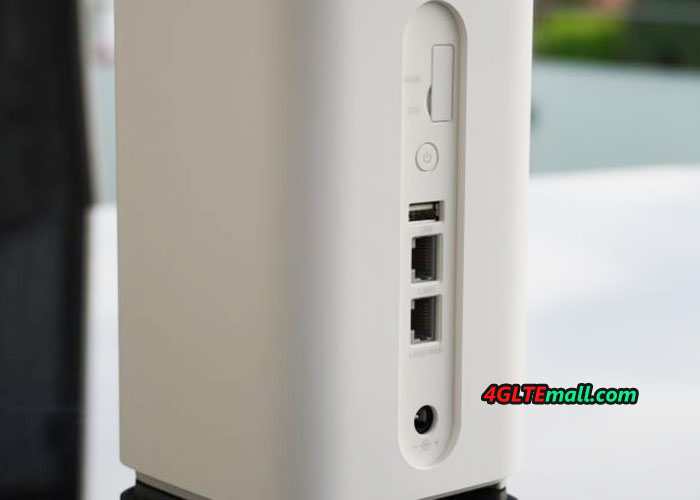
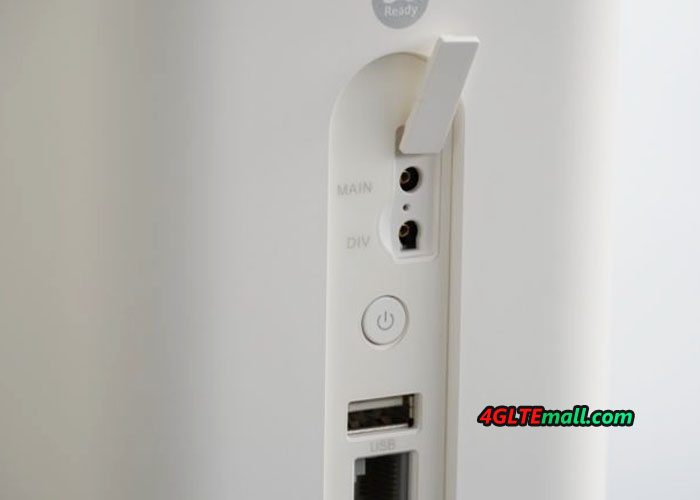
The Huawei B818 has two RJ45 Gigabit Ethernet LAN ports on the back. A LAN cable is already included. There is also a USB port and two TS-9 ports for an external LTE antenna. On the bottom, the micro-SIM card is inserted. Various LEDs indicate the operating status on the front.


The power consumption is according to Huawei at a maximum of 24 watts. A battery is not integrated in the Huawei B818 LTE router.

HUAWEI B818 IMEI and WiFi key word

Huawei B818 Price and Avaialability

Huawei B818 is now only available for Vodafone Contract, if you need the unlocked unit, you have to wait for more time. But it would be long. The Huawei B818 price in unlocked version would be more expensive than the locked one.

Telekom Speedbox(Huawei B529s-23a Router)Test

Ther Germany network provider Telekom had added a new LTE router to its contract: the Huawei B529s-23a. Although the Huawei LTE wireless router is visually in the telecom design, the software has hardly been modified. The Huawei B529 is a mix of stationary and mobile LTE router, so it has a “real” power supply and has quite large dimensions, but also has a built-in battery.


Huawei B529s-23a Router Package Content


The Huawei B529s-23a is customized for Telekom and got a new named as “Telekom Speedbox” in a smart magenta-colored packaging. In the package of the Huawei B529 router, there is a power adapter, a short LAN cable and a German-language brief instructions and a “router passport” with the preconfigured WLAN data.


Huawei B529s-23 Router Appearance


The first impression is very good. The Speedbox router is completely made of black plastic and stands on smooth surfaces thanks to four rubber feet safely. With 12 x 12 x 12.7 centimeters, the Huawei B529 is quite compact for a stationary 4G Wireless WiFi router, but quite large for a mobile LTE router. The design especially the going light strip around the router is nice. If desired, the lighting can be deactivated by pressing a button.

On the front there are four LEDs, which clearly signal the operating status. There is also a power button and the already mentioned button for the lighting. On the back there is a connection for the power supply (unfortunately no standard USB) and a RJ45 Ethernet LAN connection. Under a cover also two TS-9 connections for an external 4G LTE antenna are hidden.


On the bottom you will find the SIM card slot (MicroSIM) as well as a label on which the WLAN data and the password for the web interface are printed. Incidentally, the device does not have a SIM lock or a NET lock. You can easily use any provider in the Huawei B529, such as Orange, Vodafone, Telekom etc…


Huawei B529 LTE Modem Test


In the test with a Telekom SIM card, the Huawei B529 achieved speeds of up to 150 MBit/s. Although this is far from the advertised up to 300 Mbps, but still a good value. An Huawei Mate 20 and a Netgear Nighthawk M1, each with a much more modern modem, achieved at the same location but each about 20-30 Mbit/s higher speeds. Up to 50 Mbps were achieved in the uplink.


The Huawei B529 LTE ​​router also provided good data rates in the O2 network, although latency and speed were always slightly worse than the Netgear Nighthawk M1 used for comparison.


Huawei B529 Battery Operation


While the Huawei B529 on the power supply achieved quite good speeds in the LTE network, an annoying surprise is in the battery operation. The speed drops to about 20 Mbps, no matter how good of the reception. This behavior could be repeatedly, both in the network of Telekom as well as with an O2 SIM card. Whether the throttled battery mode is a deliberate limitation on Huawei’s part or whether it is a bug in the firmware could not be clarified until the end of the test.


The integrated battery is not changeable and has a capacity of 3,000 mAh according to Huawei. However, the operating time is quite low at around 1.5 hours compared to a mobile hotspot. The display of the state of charge is in need of improvement, the simple bar display was not helpful in the test, since it had already fallen after 20 minutes on only one bar.


Huawei B529s-23a Wireless Specifications and Features


The WLAN module of the Huawei B529s-23a transmits to 2.4 GHz and to 5 GHz (WLAN 802.11ac). A maximum of four Wi-Fi names and passwords can be configured in the web interface, two for each frequency range. The speed was up to 780 Mbit/s (gross) in the test. The range was very good in the test, especially in the frequency range around 2.4 GHz. Compared to most mobile LTE routers, the Huawei B529 is clearly better.


Up to 64 devices can simultaneously be connected to the Huawei B529 via Wi-Fi, which is significantly more devices than most mobile routers. Unfortunately, Huawei B529 has no wireless extender function. Mobile LTE routers from Huawei can use this function to use an existing WLAN network as Internet access, the B529 can only use the integrated mobile radio modem for this because the LAN connection cannot be used as a WAN port.


Huawei B529 Software & Web Interface


The Huawei B529 LTE ​​router can be configured either via the browser or via an app. The web interface is provided with a password at the factory, this can be found on the bottom of the router. Compared to previous Huawei router models, this feature has not been changed in the Web interface, the design is functional, but not new and fashion. The variety of functions is limited, after all, the network technology can be set to “only 3G” or “only LTE” and there is a switch for external antennas.


Conclusion

The Huawei B529 does not offer the latest technology, but based on the functions, the price is good now comparing with other similar routers. When used as a stationary LTE router, the modem reaches high speeds of more than 150 Mbit/s. The integrated RJ45 LAN connection is a great advantage, and the connections for external antennas are good. The integrated battery is practical, but this only allows a short operating time and the Internet speed is throttled very much in battery mode. Nevertheless, those who are looking for a stationary LTE router with extra mobile use, Huawei B529s-23a and Telekom Speedbox are recommended.


HTC Presents 5G Hub Router at MWC

At the Mobile World Congress in Barcelona, HTC has presented a new 5G router, ​​not a new 5G smartphone, which is out of our expectation. The 5G router comes with Android user interface and is equipped with a huge screen. The 5G router chipset comes from Qualcomm.

HTC 5G router Specifications

The HTC 5G Hub is equipped with a 5 inch touch screen on the front. The resolution is quite rough with 1280 x 720 pixels, but for a router such a huge screen is still almost oversized anyway. HTC promises that the 5G router is with Android 9 operating system, and can also stream movies. The output can also be made via the built-in USB-C port on the back of a TV, so you do not necessarily rely on the screen on the router. With the microSD card slot, you can also play your own content such as photos and videos on the 5G hub.

The integrated modem comes from Qualcomm, it is the model Snapdragon X50v2. The processor uses a Snapdragon 855 with 4 GB of RAM. The internal memory of the 5G Hub is 32 GB, which is sufficient for the operating system and some apps. In addition to the USB Type C connector, there is also a RJ45 Gigabit LAN connector and a connector for a power supply. However, there is no connector for external antennas, so External antennas cannot be connected.


Wi-Fi is supported on both 2.4GHz and 5GHz. In addition to the current WLAN ac standard, the upcoming WLAN ad / WLAN 6 standard is also supported.

HTC 5G Hub frequency ranges

The HTC 5G Hub can use 5G both in the mmWave frequency range between 26 and 28 GHz and in the C-band frequency range between 3.4 and 3.8 GHz. The C-band, also known as band n78, will be available in Europe. Whether the HTC 5g router also supports older mobile radio standards such as LTE and UMTS, is so far unclear. Since with the Snapdragon 855 a suitable modem is installed, but can be assumed.


HTC 5G Router Availability Time and Price

HTC brings the 5G Hub in cooperation with various network operators on the market, among other things, the 5G router is also offered in Germany at Telekom. When and at what price is still unknown. Other providers of the HTC 5G Hub are Elisa (Finland), Sunrise (Switzerland), Three (England), Telstra (Australia) and Sprint (USA). At Sprint, the 5G Hub will be available in the second quarter of 2019.


Huawei 5G CPE Pro Router Review

Chinese network equipment giant Huawei unveiled its first commercial 5G router at the Mobile World Congress (MWC) in Barcelona. The device is called “5G CPE Pro” and visually resembles the prototype, which Huawei already presented in 2018 for various 5G live shows.

The Huawei 5G CPE Pro Router is based on the HiSilicon Balong 5000 modem, which is Huawei’s first multimode 5G modem. Multimode means that in addition to 5G, 4G/LTE is supported and so a so-called dual-mode operation is possible. If the 5G reception is not strong enough, the unit will automatically switch to 4G mode so that the connection remains.

According to Huawei, the maximum speed in the 5G network is at 3.2 gigabits per second. The Balong 5000 chipset can bundle up to two 100 MHz wide frequency ranges (2CA). The Huawei 5G CPE Pro Router can handle both the frequency range between 3.4 and 3.8 gigahertz (C-band) and the millimeter-wave range between 26 and 28 gigahertz.

On the front, there are three LEDs and a WPS button for fast Wi-Fi encryption. On the back of the Huawei 5G CPE, there is a power adapter, power button, and SIM card slot at the bottom. Two RJ45 Gigabit Ethernet ports for LAN / WAN are also integrated. The WLAN works both on 2.4 GHz and on 5 GHz, in addition to the WLAN ac standard the new WLAN 6 is supported. In addition, there are two connectors for external 5G antennas(Buy Huawei 5G CPE Pro external antenna). The total design looks very similar to the predecessor Huawei B618s-65d router.


Whether and when the Huawei 5G CPE Pro Router will be launched to the market is unknown. At the MWC, Huawei also shows the 5G CPE Window Router, which uses an outdoor antenna and module, so that a good 5G connection can be guaranteed even in regions with poorer reception conditions.