| Operator | Duplexing | Spectrum |
| Hrvatski Telekom(T-Mobile) | FDD | 1800MHz |
| Tele2 Croatia | ||
| Vipnet(Telekom Austria) | FDD | 1800MHz |
4G LTE Spectrum in Hungary (Magyarorszag)
| Operator | Duplexing | Spectrum |
| T-Mobile Hungary | FDD | 1800MHz |
| Telenor Hungary | FDD | 1800MHz |
| Vodafone Hungary | TDD,FDD |
How to Configure HUAWEI E5151 Ethernet Mode Settings
Last time, we introduced how to set up the 3G connection for HUAWEI E5151 mobile WiFi, today, we will introduce how to Configure the Ethernet Settings for HUAWEI E5151:
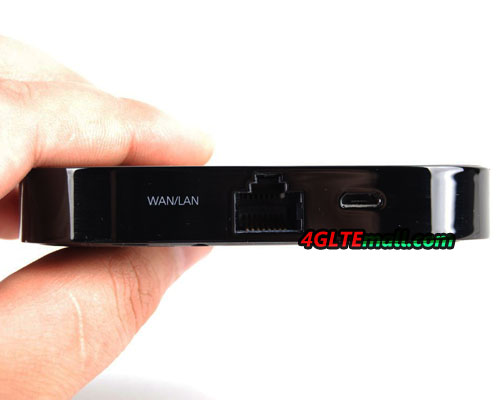
To configure the Ethernet Settings, the first 6 steps are same as setting up 3G connection. But this time is not plug SIM card, you need to plug Ethernet cable this time.
1. Then after land to Quick setup page, click next and creat the Profile name.
2. Then click to next step to the Configure Ethernet Settings. Choose the connection toy you are using, the country, account name and password.
3. Click to next step, you come to the Page of setting SSID and encryption type and WiFi password.
4. After settings, click to next page to confirm and finish to connect.
In 3-5 seconds, you could find the WiFi signal coming from Huawei E5151.
This is the general and quick set up of Huawei E5151 for common users, if you want advanced functions from Huawei E5151, you need to configure in Advanced Settings. We will introduce later on www.4gltemall.com/blog/.
Huawei E5151 3G Configuration and Setup Steps
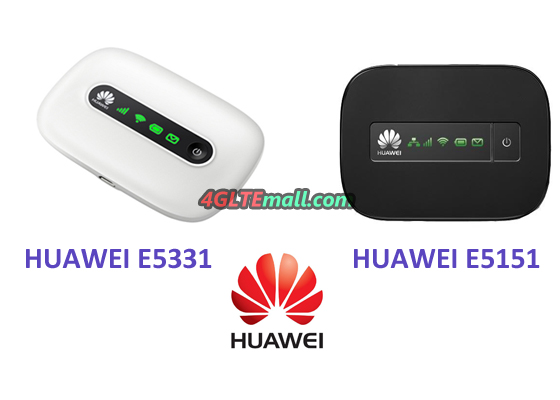
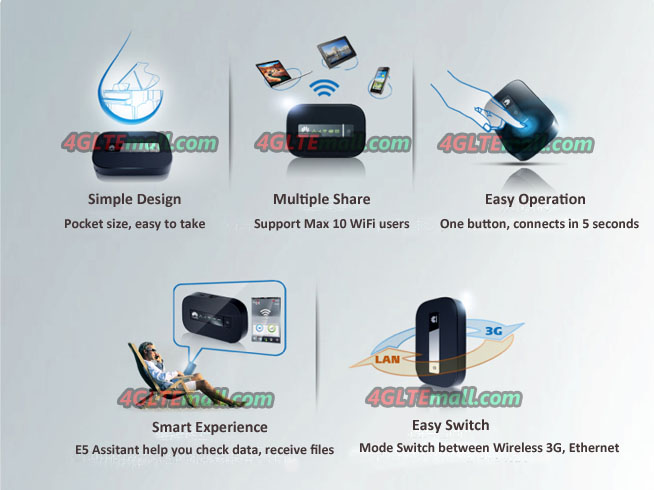
As a special member of Huawei E5 family, Huawei E5151 3G Mobile WLAN and Ethernet Router is more and more popular in businessmen and tourist. Some users may be in trouble of using it. And the main problem is that they don’t know how to set up Huawei E5151 and configure the connection. Today, we will have a general introduction of how to set up and configure this WLAN router E5151.
Set up 3G Wireless Connection
- Plug 3G SIM card to Huawei E5151
- Just one button to power on the E5151.
3. Connect the WiFi signal from E5151(the SSID is on the back cover )
4. Land the web management page, the address is 192.168.8.1 (the address is different from its predecessor Huawei E586 or Huawei E5331)
5. Log in to set up( Default log name and password are both “admin”
6. The page will guide you to the Settings. And you will find there is guide for Quick Setup
7. Click Next to next step. Usually, Huawei E5151 would auto identify you SIM card and operator, and automatically configure the corresponding data, you just need to click Next to next step.
8. If not, you need to set up the Profile name, and APN of your provider. The profile can be any words, but APN must be right, it will determine whether you will get connected to network
9. Then click Next to the page of Configure Ethernet Setting. Since we are set up 3G connection, in this step, you should choose “LAN only” in the connection type. Then to next page
10. This step is to set up the SSID name and encryption password, you can set any name and password you like, but it would be better for you easily to remember them. Then click next to confirmation page. Click “Finish” and in 2 or 3 seconds, the E5151 could get connected with network and you can start surfing.
This is the general and quick set up of Huawei E5151 for common users, if you want advanced functions from Huawei E5151, you need to configure in Advanced Settings. We will introduce later on www.4gltemall.com/blog/.
To read more about:
How to configure HUAWEI E5151 Ethernet Mode Settings
EPC: A new core network for the new LTE radio technology
Many new transmission facilities to the cellular towers are visible part of the LTE structure.
The second, invisible to the public, is equally important part: The technology and infrastructure with which these new LTE transmission facilities are operated and controlled, the so-called core network, changes radically. This core network for LTE (Engineered packet-based core network) and Evolved Packet Core Evolved Packet or designated system. It basically works like the normal Internet, the technical term for this technology is an IP-based network or English an all-IP network. But what does that mean and how this network is different from a GSM network or a UMTS network, so what is the new in it?
GSM, UMTS and LTE networks: the differences
Put simply, the current mobile phone networks were completely fixed, or in large part on voice telephony. The GSM network, the second generation of mobile phone was originally designed as a pure network; other functions such as SMS and data transmission were then gradually it. The UMTS network calls and sending large amounts of data as equal functions together. The core network is divided into a part of UMTS, which provided fixed channels for the transmission of telephone calls (circuit switched) and one of the different data sets – like the Internet – transported.
The LTE network has – like the Internet – the absolute data priority. Telephoning is thus only one of many sub-functions of data transmission. A development is reconstructed, which is advanced in the fixed network have further calls is no longer handled through a separate channel, but runs as a Voice over IP over the Internet.
Which then affects the manner in which the LTE core network works: It is anything from one terminal to the other terminal to the Internet technology – are transmitted – the Internet Protocol, or IP. Technically speaking, it is an IP-based network or an all-IP network.
This fundamental change in the net makes the data transmission speed – both for downloading and sending, as well as in the reaction times. The Australian IT specialist Stuart Corner says: It is not primarily be the new LTE data radio technology, which allows high speed jumps, but most of all the new core network.
Signaling data: By registering for the bill
The new network is allocated differently: Over a part of running the so-called signaling data – for example, the registration of the participant in the network, its verification and identification, the location of their mobile device – the other part of the so-called user data – ie services that he accepts the scheme as phone or mobile Internet.
Among the parts that manage the signaling data and edit include Management Mobility Entity, short MME (Management of the mobile units), the Home Subscriber Server, short HSS (Subscriber Server) and the Policy and Charging Rules Function, briefly PCRF (fees office).
Logs in the MME to the mobile device, and then is forwarded to a location which the services – manages – ie the data transmissions. The MME also retrieves the information about the customer at HSS – because they are deposited there, in the GSM and UMTS networks had this customer database the name of Home Location Register (HLR). The PCRF can – depending on the rate – to specific data flows from that terminal or declines; it calculates how much the service costs at the rate reserved by the customer and shall issue an invoice.
User data: designing services funneled through the net
The services themselves are carried out in the so-called SAE gateway. The acronym stands for System Architecture Evolution Gateway – and said in German as the main interface for the network. This gateway consists of two areas: First, since the serving gateway is – short SGW in German about services portal. There the user’s terminal is managed by the application at the MME continues. It remains registered so when the user switches between two cell towers or when switching from LTE to a different wireless technology. It takes the data packets received by the user sends – for example by surfing – and forwards it to the exit.
The output is referred to as PDN Gateway, which is German for Public Data Network Gateway as portal to the public networks. And that is its function: Here the data to other networks – other mobile networks, Internet – forwarded and received the input data for the terminal of customers and forwarded.
Netcomm 4G100W 4G LTE WiFi Router Review
The LTE WiFi Router Netcomm 4G100W is a powerful LTE module that allows users to connect to global 4G/3G networks with peak speeds of up to 100Mbps (4G/LTE), 42Mbps (3G/HSPA +) downlink and 50Mbps (4G/LTE), 5 , 76 Mbps (3G/HSPA +) uplink.
The router creates an instant 300Mbps WiFi network with up to 16 wireless devices simultaneously may be close, like laptops, gaming consoles, iPads and smartphones.You can also use up to 4 wired devices and 2 USB 2.0 devices, so you can connect with computers and mass storage devices.
The Gigabit WAN / LAN port provides an alternative connection to a fixed line.
The device also features 4 internal antennas: 2x WiFi antennas delivering speeds up to 300Mbps and 2x 4G antennas.
A powerful and secure LAN for home, office or on the road.
Perfect for
- Creating your own powerful Wi-Fi hotspot and personal network with the speed of 4G broadband
- Locations without fixed ADSL, cable or fiber connection available to
- High bandwidth applications such as media streaming to connected devices
- Use the Gigabit port for alternative connection to ADSL or fiber broadband
- Creating your own storage network using the USB ports
Key Features
- Connected to the 4G LTE network for high speed internet access
- Falls back to HSPA + and LTE is not available
- Delivers data rates up to 100Mbps downlink and 50Mbps uplink (LTE)
- Gigabit Ethernet port configurable as WAN or LAN. Can then be used as an alternative connection for fiber or fixed telephony (WAN) or a fast connection to a LAN such as a NAS
- 3 x 10/100 LAN ports for multiple wired connections
- Provides a secure Wi-Fi network for up to 16 wireless devices, such as laptops, smart phones and game consoles
- Local WiFi speeds up to 300Mbps
- 2T/2R internal antenna configuration
- 2 USB ports to create a network for mass storage devices
- Ideal for homes and businesses without access to DSL or cable
- Multiple users can use the connection, and a data beam portions so that the device is a cost-effective
How to Set Up Huawei E392 Wireless Connection
4G LTE modems are more and more popular, when users experience the new technology; they also face the problem about setting the new dongles.
Actually, it’s not difficult to set a 4G modem. Today we will have a short introduction of how to set up Huawei E392 4G LTE FDD TDD Surf sticks. Huawei E392 is the most popular 4G LTE dongle all over the world, that’s why we choose this modem.
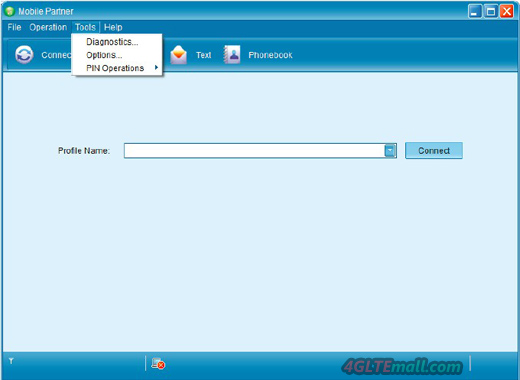
First step, users must install the software- named Mobile Partner, to PC. For different operators, the version of Mobile partner may vary, but basic functions are the same. If there is already Mobile Partner, it’s better to uninstall it and reinstall the new. Of course, I mean the first time you use the 4G modem.
Secondly, after the drivers are installed to PC, it’s time to set up the modem. Sometimes, the mobile partner may cannot detect SIM card or detected the SIM card is invalid, you need to switch out the E392 Modem from the PC and pull SIM card out and Re-plug it. Usually, it’s due the slow reflection from PC. The 4G software is configured with many new technology of data transmission, when it runs, it may cause the PC system run very slowly.
After the Mobile partner detected Huawei E392 and the SIM. Now click the head column “tools”, there is “Options”, then you can see there are “General”, Text Message, Profile Management and Network.
And then in the Profile Management, you need set below information:
– Profile Name: 4GLTEMALL (It’s just a name, you could write any name you like, default starts automatically)
– APN: Static check
– APN: @@@ (you need to check the APN of your SIM card provider and then enter the right one)
– Access number: * 99 #
– User name: 4GLTEMALLCOM
– Password: 4GLTEMALLCOM
(User name and password could write anything you can remember)
Then set this profile as default and Click “OK”.
Next step, click Tools– Network.
There are 4 options in the dropdown-LTE only, WCDMA only, GSM only and Auto. If you are using 4G SIM card, you can choose “LTE only”, the other 3 options are also usable. But if you are using 3G card, “LTE only” is not workable. Usually, choose “Auto” is good to choose because the modem will switch automatically for users to choose available fastest speed. If the fastest network disconnect, the mobile partner will switch lower lever network and auto connects so that users could keep surfing.
After choose the network, click “apply” and “ok”, then back to home Manu. Click “Connect” button. You can easily get connected with network and access to surf.
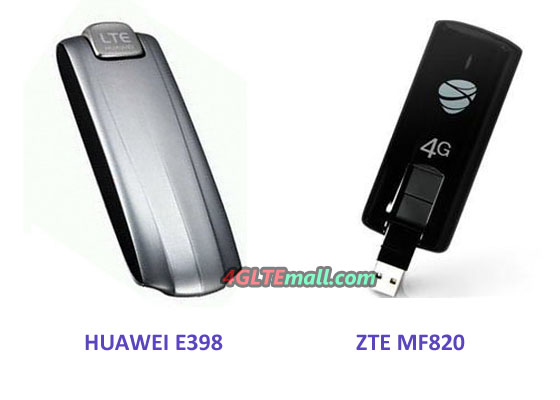
This setting method is also applicable for HUAWEI 4G LTE USB Modem such as E398, E397 etc…So if you are in trouble using your HUAWEI 4G LTE Dongles, you can follow the steps to get 4G networks connected.
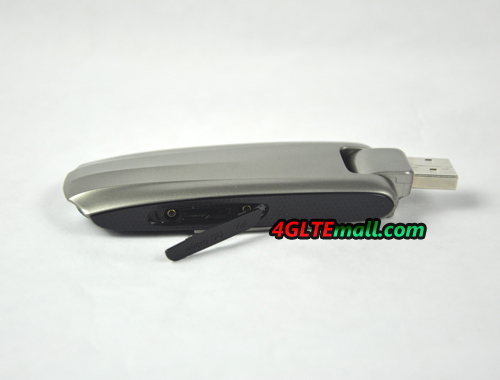
Huawei E398u-18 4G LTE FDD USB Modem Review
Comparing with Huawei E398 other branch models, such as Huawei E398u-11, E398u-1 and E398u-15, Huawei E398u-18 should be a special one, it’s not because Huawei E398u-18 has different appearance as other models, it’s due to Huawei E398u-18 supports the special FDD LTE band 8 (900MHz), which is rarely deployed per current 4G network situation.

According to the GSA report about 4G LTE network, the Band 8 (900MHz) is only available in few countries and areas, such as KT Corporation in South Korea, Telenor in Sweden. And in the market, few 4G modems could support this band. Huawei E398u-18 is one of them.

Today, we get the Huawei E398u-18 4G LTE FDD Surf stick with Telenor logo. Telenor is the provider in Europe and provide 4G network in three countries: Hungary, Norway and Sweden.

In the three countries, Telenor provides different LTE frequencies as below:
Hungary: FDD 1800MHz
Norway: FDD 2600MHz
Sweden: FDD 900/2600MHz
So to save cost, Huawei E398u-18 could support all of the bands/Spectrum above: 4G LTE FDD 900/1800/2600MHz
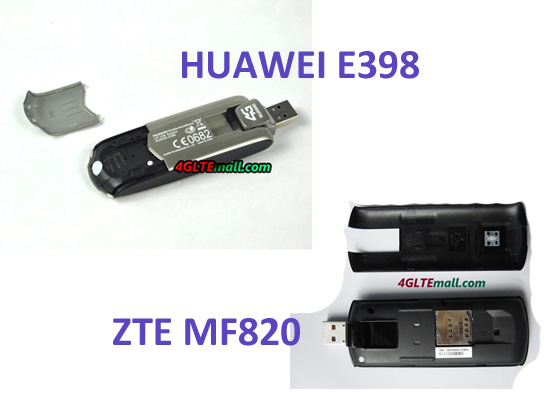
With same appearance of E398u-11 and E398u-15, Huawei E398u-18 has only one external antenna connector at the side Micro SD slot. If user wants to use data card with MIMO technology, E398u-18 may not be a good option.

Like other E398 Modems, Huawei E398u-18 could also work with 3G UMTS network and 2G GSM/GPRS network: 3G UMTS band is 900/2100MHz and 2G qual-bands. And the rotatable USB is classical features of Huawei E398.

As the brother model, Huawei E392 4G FDD TDD multi-mode data card also has one similar model, the model number is Huawei E392u-6. HUAWEI E392u-6 supports 4G FDD 900/1800/2100/2600 Mhz, which seems more powerful than HUAWEI E392u-6.
If you want any of them, welcome to buy it from www.4gltemall.com .
ZTE MF91 4G 100Mbps Mobile Pocket WiFi Router Spec and Reviews
As the top telecom equipment supplier in China, ZTE is leading the 4G LTE technology. And we are glad to see ZTE release one new 4G LTE Router, in real, it’s a mobile pocket WiFi Router. The model Number is ZTE MF91. It’s attractive at the first glance. We can’t wait to know more about this new gadget.
ZTE MF91 4G LTE Pocket WiFi Router can be the fastest Wi-Fi devices for Internet access. The speeds that can be achieved are impressive up to 100 Mbps download and 50 Mbps upload speed on LTE FDD network. The ZTE MF91 is thus the fastest mobile router MiFi available now on the market.
The MF91 4G LTE Mobile Hotspot supports up to 10 simultaneous users. This means that with the MF100 along with 9 other friends can enjoy fast internet. The ZTE MF91 supports all WiFi devices like the Apple iPad, iPod, iPhone, Samsung Galaxy and more.
The ZTE MF91 supports the following modern networks such as 4G LTE FDD 2600/1800 MHz, HSPA +, HSDPA, HSUPA 850/2100MHz on the 3G UMTS (WCDMA) network, but also works on the old 2G network (850/900/1800 / 1900 MHz).
The ZTE MF91 comes in a black color and has an impressive industrial design. The OLED display shows the signal type, signal strength, battery status, Wi-Fi mode and more. The ZTE MF91 has an external antenna port to amplify the signal. The antenna is sold separately.

The ZTE MF91 uses 802.11b/g/n Wi-Fi connection standard that currently belongs to the fastest. In the standby mode, the 2300 mAh battery to about 100 hours. In active mode is up to 6 hours.
The MF91 has a memory card slot for MicroSD / MicroSDHC memory cards (up to 32GB). A new interesting feature of this Router MiFi is the “Security Mode” that protects users from unauthorized connections.
ZTE MF91 Specifications:
* Unlocked with ZTE logo.
* 1.4 “OLED Display
* Up to 10 Wi-Fi devices simultaneously.
* Integrated UMTS and WLAN “High Gain” antenna.
* Download Speed 100 Mbps.
* Upload speed 50 Mbps.
* 4G Network LTE-FDD-1800/2600 MHz
* Network 3G-850/2100MHz and 2G-850/900/1800/1900 MHz.
* Obtain worldwide LTE / UMTS / WCDMA and EDGE / GPRS / GSM networks.
* Wifi 802.11 b / g / n.
* MicroSD card slot max 32GB.
* Battery 2300 mAh Li-Ion.
* Dimensions: 100x58x15, 9 mm
* 2 * External antenna connector(TS 9 connector)
* Warranty 12 months.
Here is the specification in PDF:
ZTE MF91 4G LTE Mobile Hotspot
In the package box:
ZTE MF91 MiFi Router
* USB Cable
* Battery
* Adapter
* Manual
Some user may concern about comparion with HUAWEI E589 4G LTE Pocket WiFi, actually, per our testing, they are both new 4G LTE devices of revolution. HUAWEI E589 may be more powerful because it support more LTE bands, which means it support more LTE networks all over the world. Concerning the price, ZTE MF91 4G Router is a budget LTE router if the network in your country is compatible with it.
Actually, there are difference model of ZTE MF91 available at the same when ZTE MF91 come out. They incorporate different 4G LTE frequencies for different 4G LTE network, such as ZTE MF91T 4G Mobile WiFi is for TD-LTE network. And ZTE MF91S is also for LTE TDD network at 1900/2300/2600MHz. 4GLTEmall.com Provider the unlocked version for customer to choose the best which is best for them.
LTE Networks: The Architecture
The architecture of LTE networks is given the technical term System Architecture Evolution or the corresponding abbreviations SAE.
It is compared to previous wireless networks and provides a simpler structure to process with greater amounts of data. Thereby it provides a faster response time of the entire network. The new architecture is also the seamless mobility between LTE and other wireless technologies such as GPRS or WiMAX. Finally, the new architecture could transform the wireless network to an all-IP network. This means the data packets are sent to the wireless network in the Internet-standard. In order for mobile devices, IP-based services such as IPTV, online games, or data transfer from the Internet, but also Internet telephony is optimized.
EUTRAN: The wireless network
As with any wireless network even in the LTE, radio network consists of individual cells. The device of the user need the radio signals from the base station, from there to the base station – in LTE it is called eNodeB. Transmission tower and base station form a cell.
In LTE radio network, several adjacent radio cells are combined to form a group, which are known as the Tracking Area. The entire radio part, that all radio cells and tracking areas of an operator is taken together, the technical English with E – UTRAN or EUTRAN called. The term EUTRAN is from the initials of Evolved Universal Terrestrial Radio Access Network formed. This part of the network is also referred to as air interface.
EPC: The core network
The user’s data are going to the core network Of the air interface for LTE, which in technical English Evolved Packet Core ( EPC is called). The Evolved Packet Core consists of three components:
The first is the MME. This abbreviation stands for Mobility Management Entity. An MME manages multiple tracking areas. The MME is the most important control element in the EPC; it is only responsible for control signals. The MME is responsible for the mobility management, which means that they registered and be identified by the exact location of the user, which is a terminal in the LTE network. In the MME, it’s possible to notify the user to speak with his terminal.
The MME also organizes the recognition of the user, or finds his admission. Detection of the user accesses the MME to a database, in which the participants are recorded, this means in English technical HSS (Home Scriber server). His profile is stored in the MME. the MME sets the key, after the data is encrypted and sends it to the base station – or the eNodeB – which performs the encryption. When the terminal is turned on, the MME calls him an SGW.
This SGW (short for English Service Gateway) is the second component of an LTE network. The service gateway remains the focal point for the user’s device when it switches between two LTE transmission towers or when the LTE network must switch to UMTS or GSM network. The SGW is a switching station – it switches the users coming from or addressed to him data to the correct address.
By the user sent or addressed to him, data runs over the third component: the Public Data Network Gateway (symbol: PGW, meant: Interface for public data networks). The PGW is as it were a terminal, where the user’s data from the network of the mobile operator forwarded to other networks or in the data arriving from other networks for him, ready to collect.
The terminal of a user is able to communicate with a plurality of PDN-GW – if it is responsive simultaneously different networks. The PDN gateway also sends data to a computing unit, which is outside of the core network, the PCRF (Policy and Charging Rules Function).
The user directory and the accounting office
This brings us to the two parts of which are outside of the core network, however, associated with this are: the Home Server Scriber, short HSS are the user data, including a profile stored. He is like a complete list of all customers of a mobile operator. Here, for example, the identification number (IMSI) of the mobile subscriber is stored or which services are allowed for him. There will also be stored at which the MME device was last logged.
The accounting and control station is finally in the part that policy and charging rules function (PCRF) is called. It’s noted that the types of data that arrive in the PGW can be used by the customer, and if so, under which tariff they fall. Using this information the bill then finally can create.